Saved views
Once you have set up a view the way you like it, you can save the view so you won’t have to configure it again later. InEight Estimate also comes with some pre-built views to help you organize the screen the way you want to see it.
Views are accessed from the Saved Views menu in the top right portion of a register.
The following steps assume you have made changes to your register view and want to save it for future use.
Save a view
-
In the CBS register, click on the Saved views drop-down menu. The Save disc icon shows.
-
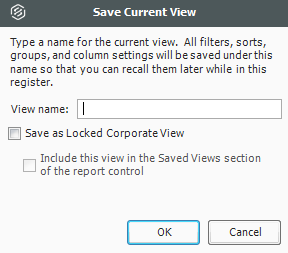
Click the Save disc icon. The Save Current View window shows.
-
Enter the View name, and then select OK. The new view shows in the drop-down menu.
Saved views are user-specific; you will only see your own saved views when you are logged in.