Archive and restore jobs
One of the most useful features within Estimate is the ability to archive job folders. This feature is used to store job folders that you create in Estimate in a compressed format. This feature is particularly useful when you want to create a backup copy of one or many jobs.
Archiving jobs can also be useful for moving a job from one environment to another, such as sending a job file to another Estimate user in a different office or a different company.
Once you have backed up Estimate job data you always have the ability to restore that data at any time by using the Restore feature.
As a SaaS product, Estimate is sometimes made the casualty of server-side interruptions in service, which are out of Estimate’s control. The auto-save function makes attempts to save your data prior to Estimate shutting down. For more information, see the Estimate resiliency section in the General navigation topic.
Step by Step — Archiving a Job
-
Click on the File tab. From the Backstage View, select Archive/Restore from the left navigation pane.
-
Select Archive Job.
-
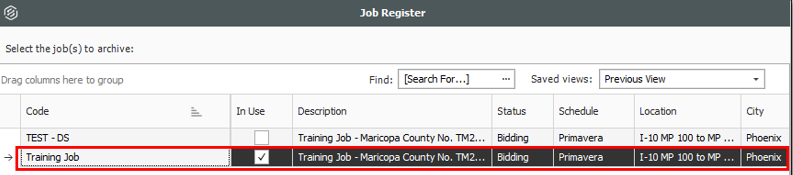
From the Job Register, select a job to archive. Click OK.
-
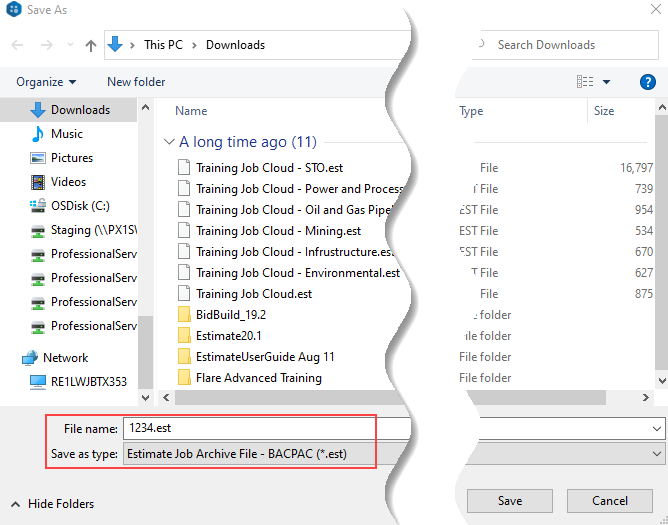
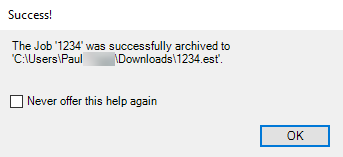
Save the .est job on your desktop. Click Save. Then click OK.
Restore Job Archive
Once you have archived an Estimate job, you always have the ability to restore that data at any time by using the Restore Job Archive feature. This feature de-compresses a specified archive file and provides you with the ability to overwrite an existing job or specify a new job code where you want to restore your job data.
Step by Step — Restore Job - Estimate in the Cloud
-
Click on the File tab. From the Backstage View, select Archive/Restore from the left navigation pane.
-
Select Restore Job.
-
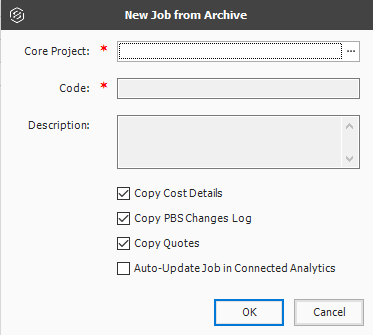
Select the archive that you previously saved to your desktop. Click Open. The New Job from Archive window opens.
-
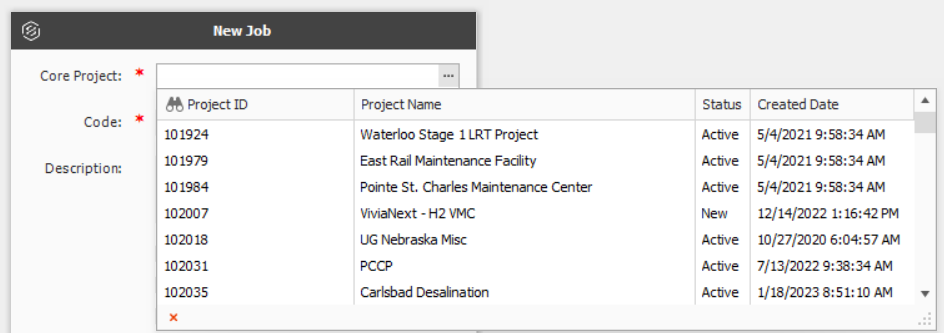
Click on the ellipsis in the Core Project field to select a Platform job.
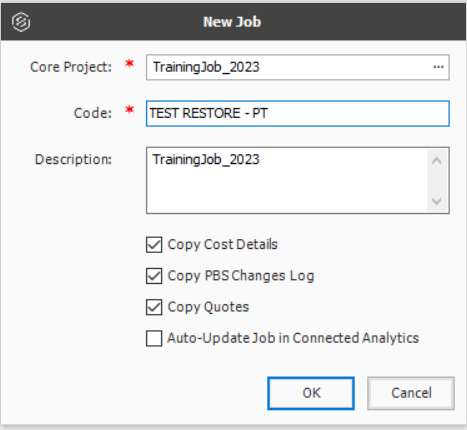
- Enter a code TEST RESTORE – Your Initials in the Core field. Check the boxes to copy cost details, copy PBS changes log, and copy quotes into the new job. Click OK.
-
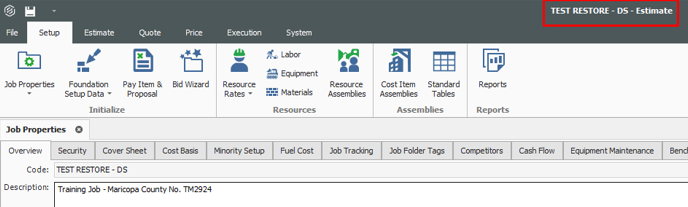
Your restored job will open in a new window. Close out of the restored job.