Resource types and management
Resources are used as the basic building blocks to detail costs in your estimates. You can manage the following resources in the Resource Rate Register:
Labor resources
Labor resources perform direct or indirect work. Looking at your Labor resources more closely, you will see all the Resource Codes for the Labor resources begin with an L. This is a best practice for naming and organizing your resources, but you can also use another organizational method of your choice.
Create a labor resource
-
From the Library landing page, on the Setup tab, click the Resources button in the Master Resources section. The Library Resource Rate Register opens
-
Select the Labor tab.
-
Right-click any row header and select New. A new Labor Rate Record shows.
-
In the Code field, type L + [your initials].
-
Press the Tab key.
-
Fill in the Description field.
-
Click on the resource’s Setup tab, and then select Standard Labor Rate File from the Resource File drop-down list.
-
Select a location for the Geographic Area.
-
Select Wage Zone A for Wage Zone.
-
Select a labor type for the Organizational Category.
-
For Tag 1, select a code.
-
For Tag 2, select a code.
-
On the Charge Rate tab, enter a dollar value for your Labor Base.
-
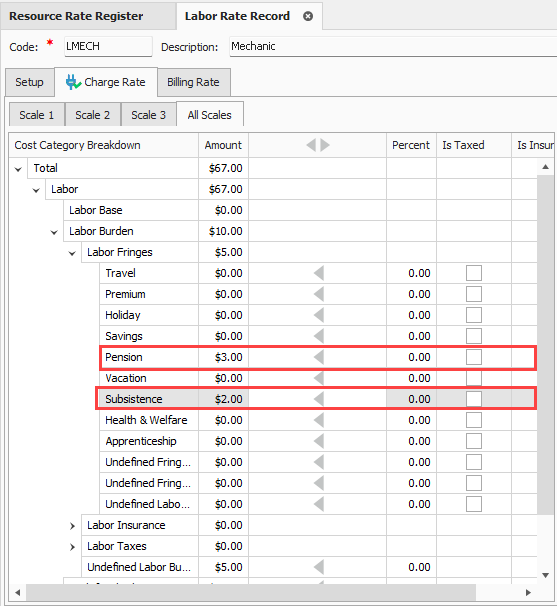
Expand Labor Burden and under Labor Fringes, type in a dollar value for Pension and Subsistence.
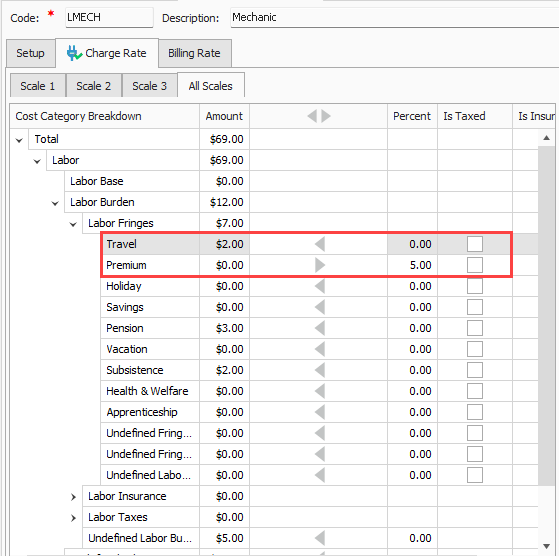
When you enter a value in the Amount column, the gray arrow Indicator icon points to the amount side (left), indicating that the value is entered in that column. When the Percent column amount shows Varies, it is because the percent amount varies depending on the amount entered.
When you enter a value in the Percent column, the gray arrow Indicator icon points to the percent side (right) indicating that the the value is entered in that column. When the Amount column amount shows Varies, it is because the amount varies depending on the percent entered.
-
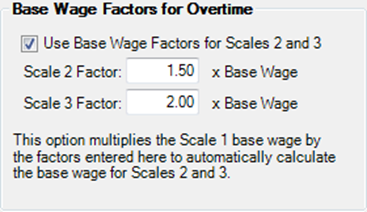
Define an overtime and double-time rate for the resource. Select the checkbox for Use Base Wage Factors for Scales 2 and 3.
-
Set the Scale 2 Factor to 1.50 x Base Wage and Scale 3 Factor to 2.00 x Base Wage.
-
Click OK, to close the record.
Construction equipment resources
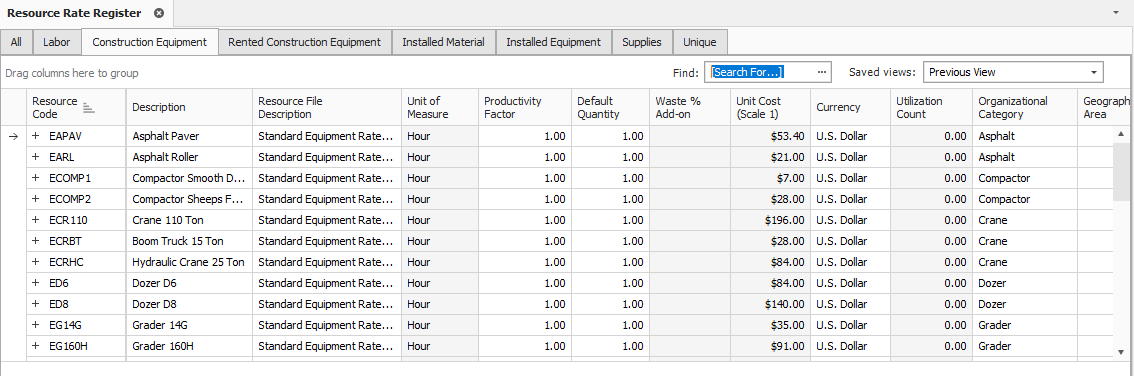
Similar to Labor Resources, construction equipment resources are also duration driven resources by default. Construction equipment resources contain cost categories for ownership and operation costs
These resources are the fleet of construction equipment that you own.
Rented construction equipment resources
Rented construction equipment resources represent the construction equipment that you rent and are duration driven resources by default. They contain cost categories for rental and operation cost as well as additional fees.
On the Rental Construction Equipment Record, you can view a tab named Quote. In the Tax section, you can select the check box to Apply Standard Tax, which pulls the Sales Tax percentage defined on the Cost Basis tab in Job Properties. You can also manually specify a unique sales tax rate
Create a rented construction equipment resource
-
Open the Library Resource Rates Register.
-
Select the Rented Construction Equipment tab.
-
Right-click any row header, and then choose New. A new Installed Rented Equipment Rate Record shows.
-
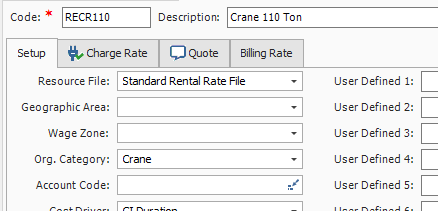
In the Code field, type RECR + [your initials], and then press Tab.
-
In the Description field, type Crane 110 Ton.
-
Click the resource’s Setup tab, and then select Standard Rental Rate File from the Resource File drop-down list.
-
Select a resource from the Organizational Category drop-down list.
-
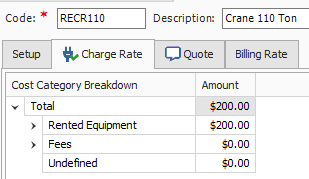
Click the Charge Rate tab, and then enter the charge rate using the relevant fields. You can also use the Non-Hourly Period Charge Rates section on the bottom left to calculate hourly rates for fixed rates such as weekly or monthly rates. See the Non-Hourly Rate Calculator section below.
Equipment consumption rates
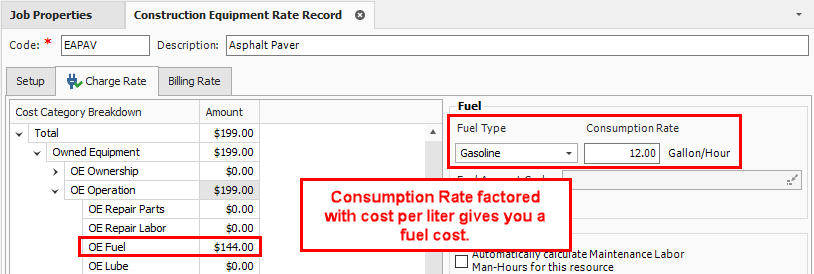
The Construction Equipment and Rented Construction Equipment Resource Rate Records include consumption rates that factor with the fuel cost you define on the Library Job Properties > Fuel Cost tab to give a fuel cost for your equipment rate.
The below figure shows where consumption rates are defined on the Construction Equipment Resource Rate Record.
Non-hourly rate calculator
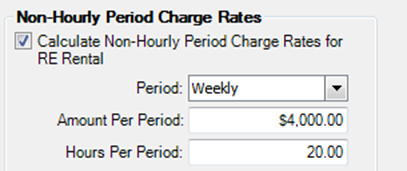
For owned and rented construction equipment, the rate entered must be hourly. If your rate is weekly or monthly, you can use the Non-Hourly Rate Calculator on the Construction Equipment Resource Record to come up with the hourly rate.
Using the Non-hourly rate calculator
-
Refer back to your last entry's rate amount. Under Non-Hourly Period Charge Rates on the right, check the Calculate Non-Hourly Period Charge Rates check box.
-
On the resulting prompt, click OK.
-
In the Period field, select Weekly.
-
In the Amount Per Period field, type in a number value.
-
Type in a number of hours in the Hours Per Period field.
-
Click OK to close the record.
Installed materials, installed equipment, and supplies resources
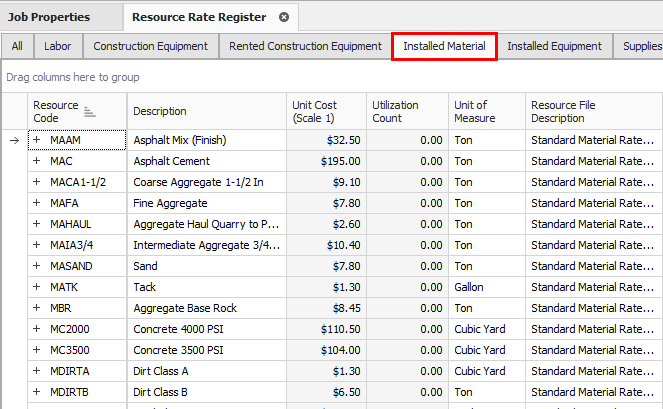
When you compare the Installed Material & Equipment resources to those covered so far, you will note that the unit of measure is not Hour for materials, but it is specific to the kind of material. It is a quantity-driven resource, as opposed to duration-driven like your labor and equipment resources.
You will also note the tax field can pull your standard tax settings from the Cost Basis tab in Job Properties, or a unique sales tax rate can be manually entered in each record.
On record for these resource types, you notice a tab named Quote. This tab shows because you may have to shop around and get quotes for these resources.
In the Setup tab a field named Waste % Add-on shows. Here you can account for approximate waste percentages
Cost categories differ on each type of resource record.
Above is an example of the Installed Material tab in the Library Resource Rate Register.
Create an installed material resource
-
Select Resource Rates from the Library landing page. The Resource Rate Register displays
-
Select the Installed Material tab.
-
Right-click any row header, and then select New from the drop-down menu. A new Installed Material Rate Record shows.
-
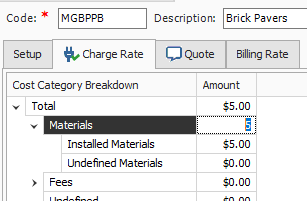
In the Code field, type MGBP + [your initials], , and then press Tab.
-
In the Description field, type Brick Pavers.
-
Select a unit of measure from the Unit of Measure drop-down list.
-
On the resource’s Setup tab, under Resource File select Standard Material Rate File.
-
On the Charge Rate tab, expand Materials, and then enter a number value in the Installed Materials Amount field.
-
Click OK to finish adding this resource.
Unique resources
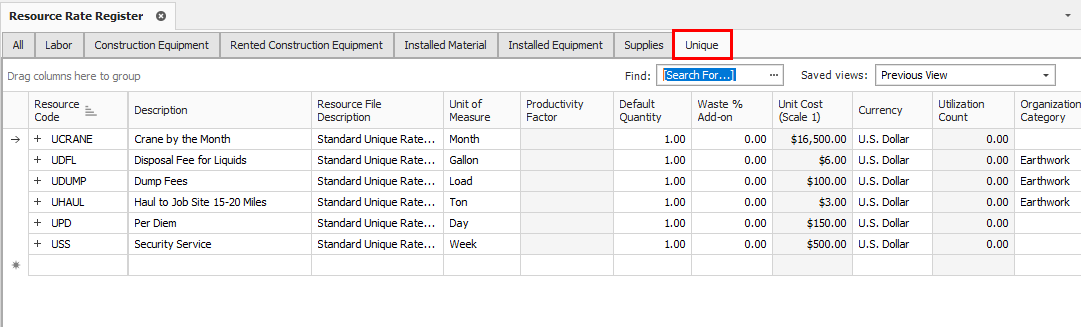
The Unique resource type is a catch-all and can be used for anything from dump fees and security to creating subcontractors as a resource.
The Unique resources are the only resources that have all cost categories available, as well as all units of measure.
Notice the tax field which can pull your standard tax settings from the Cost Basis tab in Job Properties, or a unique sales tax rate can be manually entered in each record.