DACH
Manage your bill of quantities (BOQs) in the Pay Item & Proposal Register using the standard GAEB file format. You can import, update, and then export BOQs. In the Actions > Data Source section of the Pay Item & Proposal Register, click the DACH drop-down menu, and then select from Import GAEB, Delete GAEB, or Export GAEB.
Import GAEB
Import your BOQs into Estimate to automatically create pay items in the Pay Item & Proposal Register. When the Lock Cost Items to Pay Items option is selected, cost items are also created in the Cost Breakdown Structure (CBS) register.
You can export the GAEB bid file after updating it. If you make changes to the GAEB bid file, you can then import the newly updated file without duplicating the pay items. Estimate updates existing pay items and creates any new pay items in the file.
Import a GAEB bid file
-
In Pay Item & Proposal Register > Action tab, click the DACH drop-down menu, and then select Import GAEB.
-
In the GAEB Sources Register dialog box, select the GAEB file, and then select Open.
-
In the successful import dialog box, click OK.
You must have all the UoMs from the imported file entered in the job’s foundation setup data. An error shows if they are not found in the job.
You can review and update the imported pay items as needed. Cost items are automatically created when Lock Cost Items to Pay Items is selected.
Export GAEB
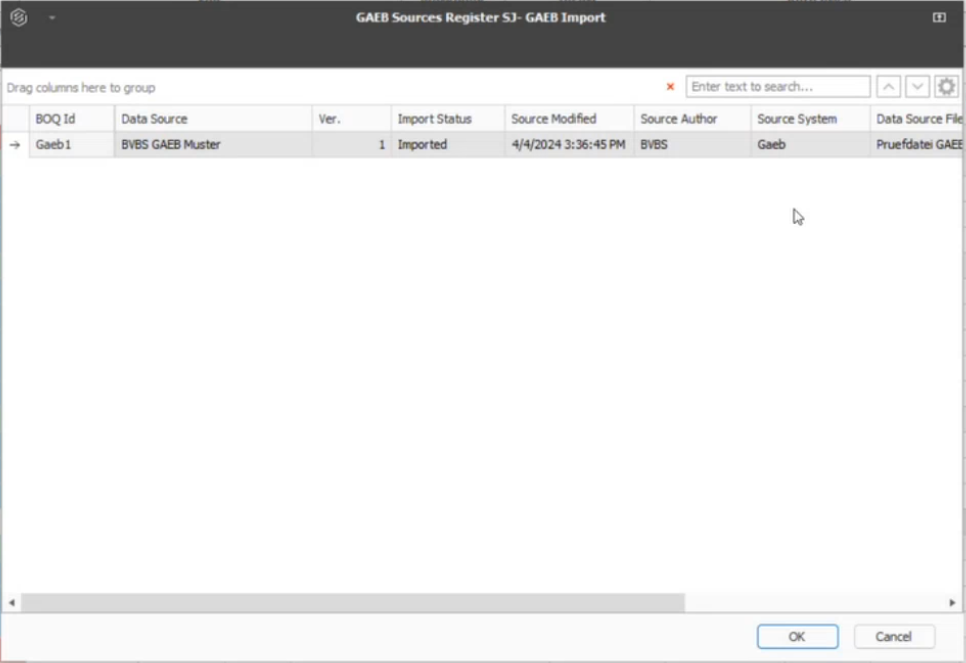
Export the pay items from Estimate to a source GAEB file using the list of imported files. When you select Export GAEB, the GAEB Sources Register dialog box opens and shows a list of imported GAEB files for you to select from. The exports contain any updates made to the pay items, such as pricing.
Export a GAEB bid file
-
Select the DACH drop-down menu, and then select Export GAEB.
-
Select the GAEB file to export, and then select Open.
-
In the Successful import dialog box, click OK.
After the export is completed, the BOQ file automatically opens to quickly review.
Delete GAEB
You can delete the imported pay items if, for example, the following occurs:
Delete a GAEB bid file
-
Expand the DACH drop-down menu, and then select Delete GAEB.
-
In the GAEB Sources Register’s dialog box, choose the GAEB file imported from the list, and then select OK.
-
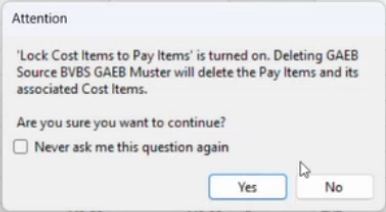
When Lock Cost Items to Pay Item is selected, an Attention dialog box shows to confirm if you want to delete the associated cost items. Click Yes to continue.