
Products
Solutions
Resources
9977 N 90th Street, Suite 250 Scottsdale, AZ 85258 | 1-800-637-7496
© 2024 InEight, Inc. All Rights Reserved | Privacy Statement | Terms of Service | Cookie Policy | Do not sell/share my information

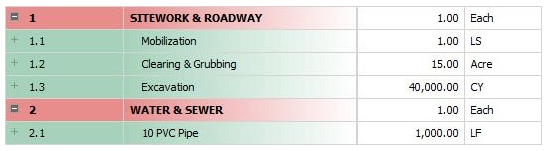
From the Estimate tab, select Cost Breakdown Structure (CBS).
In the Forecast (T/O) Quantity column, the Forecast (T/O) Quantity is brought over from the Pay Item & Proposal Register, but here you can adjust it if needed. Practice adjusting the Forecast T/O quantity of one of your cost items.
From the Estimate tab, select Cost Breakdown Structure (CBS).
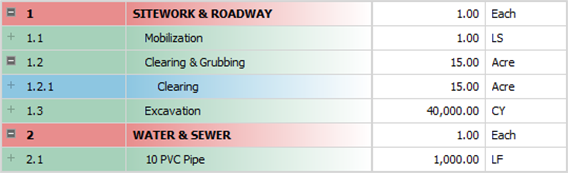
Right-click on a cost item and select Insert Subordinate.
This creates a new subordinate cost item below your selected cost item
For the subordinate cost item, enter a description.
Add a quantity and select your Unit of Measure.
From the Estimate tab, select Cost Breakdown Structure (CBS).
Right-click on the row header for a cost item and select Open.
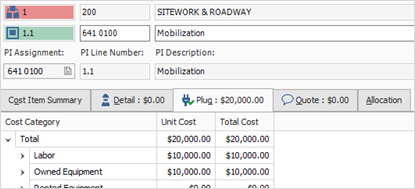
In the Cost Source drop-down field select Plug.
In the left section of the cost item, select the Plug tab.
Click in the Unit cost or Total cost field for a cost category and type in a Numeric Value.
From the Estimate tab, select Cost Breakdown Structure (CBS).
Right-click on row header for a cost item and select Open.
Select the Detail tab.
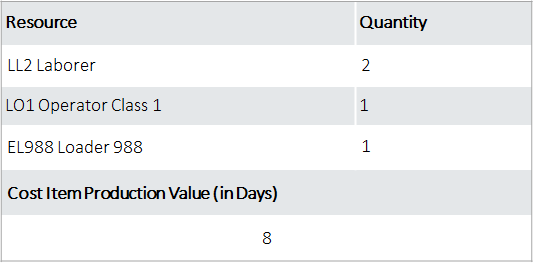
A blank row is available to define your costs. With your cursor in the code field, click the Resource Selection icon to open the Resource Selection Register.
Select a resource tab (e.g., Labor).
Select a resource.
Select OK.
Repeat the steps to add additional resources as needed.
Click in each resource’s quantity field to change their quantity as needed.
From the lower-right section of the form, select the Production tab.
Type a numeric value in the Days field, then press Tab.
Click OK to close the record.
From the Estimate tab, select Cost Breakdown Structure (CBS).
Right-click on the row header for one of the cost items and select Open.
Select the Detail tab.
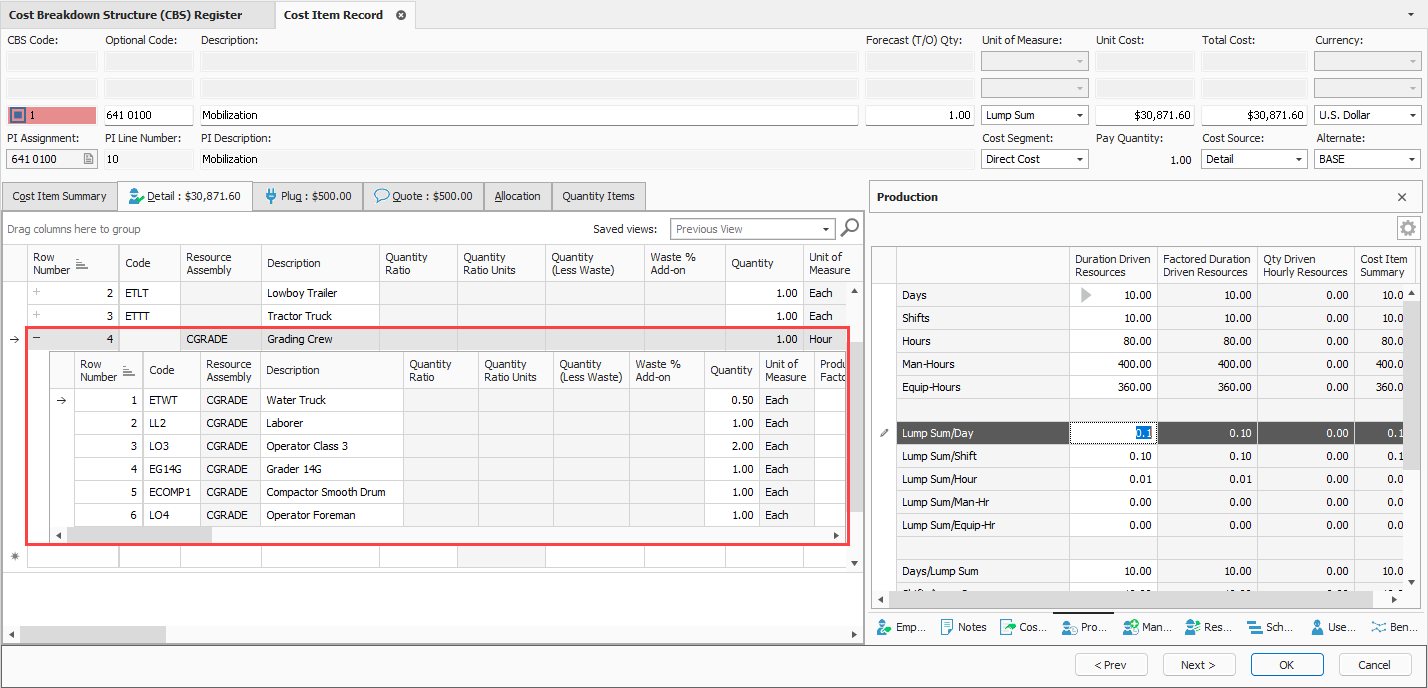
With your cursor in the Resource Assembly field, click the Resource Assembly Selection icon to open the Resource Assembly Selection Register.
Select an assembly, then click OK.
Because this crew includes duration-based resources, you need to enter a Production value. Select the Production tab.
Type a numeric value in one of the production fields (e.g., Lump Sum/day), then press Tab.
For example, on the Grading cost item, you can add a Grading crew with a production value of 1 Lump Sum/Day.
From the Estimate tab, select Cost Breakdown Structure (CBS).
Right-click the row header for a cost item and select Open.
Select the Cost Item Setup tab in the lower-right portion of the form (the tab name may be abbreviated).
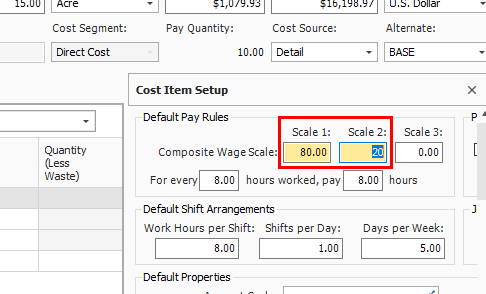
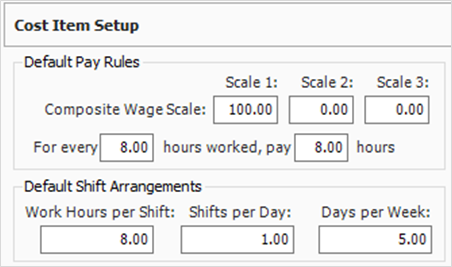
In the Default Pay Rules data block, adjust your Composite Wage Scale as needed.
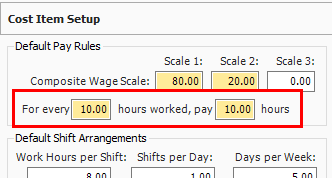
Under the Composite Wage Scale, adjust the number of hours and paid as needed
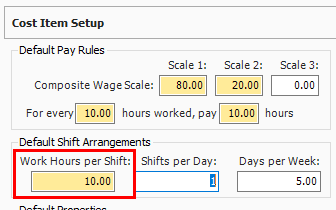
In the Default Shift Arrangements data block, make changes as needed.
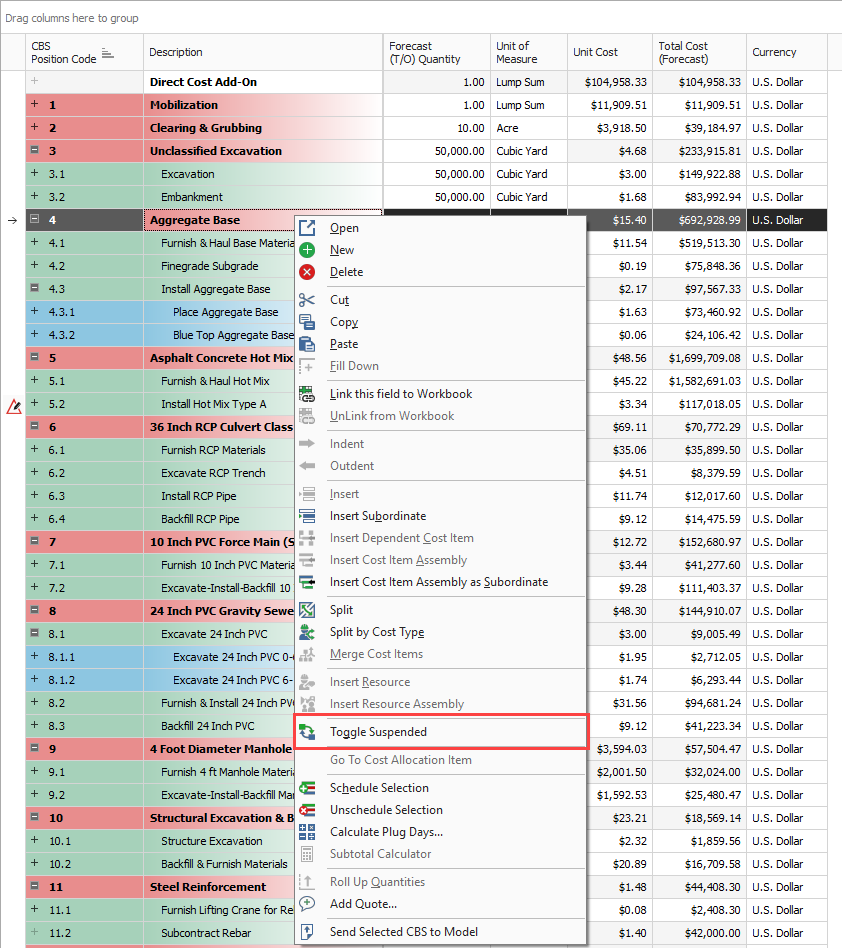
On the Cost Breakdown Structure (CBS) Register, select a cost item.
Right-click the selection and select Toggle Suspended from the menu.
You can also select Toggle Suspended under the Edit section of the Actions tab at the top of the register.
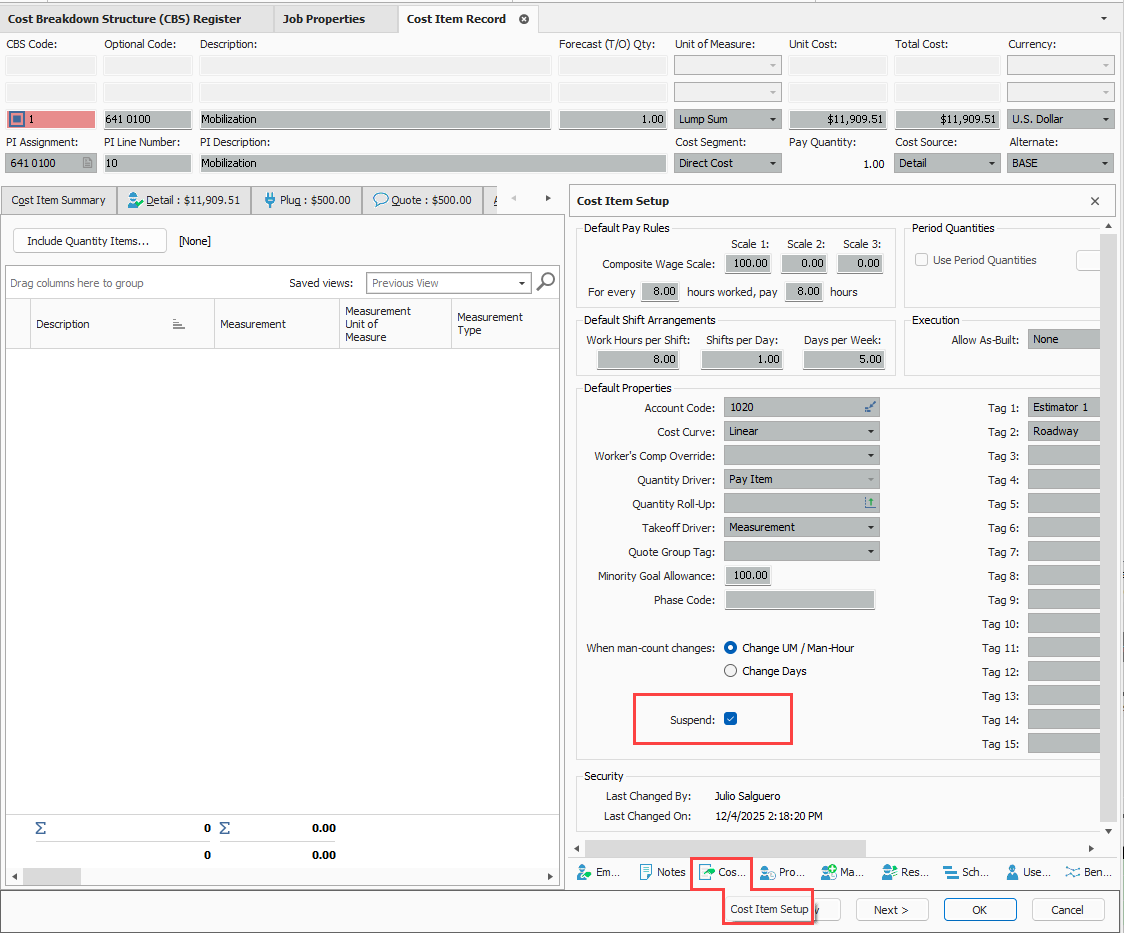
You can also suspend cost items by checking the Suspend check box on the Cost Item Setup data block of a cost item record.
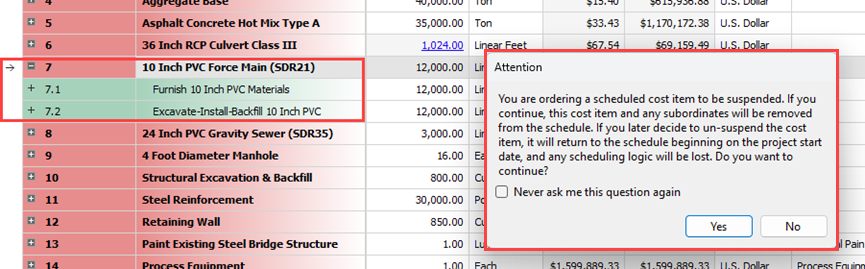
If a superior cost item is suspended, its subordinate cost items are automatically suspended as well.
The costs associated with these cost items no longer contribute to the estimate.
On the Cost Breakdown Structure (CBS) Register, select a cost item.
Right-click the selection and choose Toggle Suspended.
Additional Information
9977 N 90th Street, Suite 250 Scottsdale, AZ 85258 | 1-800-637-7496
© 2024 InEight, Inc. All Rights Reserved | Privacy Statement | Terms of Service | Cookie Policy | Do not sell/share my information