Default indirect cost items
InEight Estimate contains various default cost items to help you calculate your indirect costs.
Independent indirect cost items
Independent indirect cost items function very much like the direct cost items you defined previously:
Job Management & Equipment
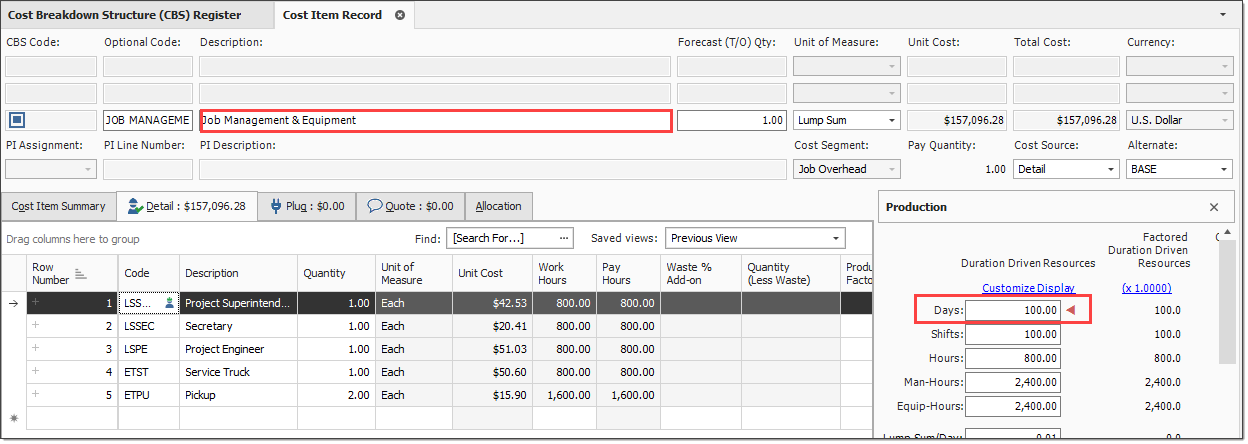
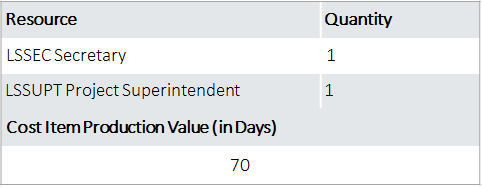
The sample Job Management & Equipment Record below shows that you can add resources and production just like in your direct cost items. Supervisory staff resources were added, and the production duration is set to 100 days.
The following Step by Step walks you through defining resources and costs for your Job Management & Equipment indirect cost item.
Add job management & equipment costs
-
In your job, from the Estimate landing page, select the Cost Breakdown Structure (CBS).
-
Double-click on the row header of the Job Management & Equipment indirect cost item.
-
Add resources by clicking in the Code column and selecting the Icon.
-
Select the Production tab.
-
Enter a production value.
-
Click OK to close the record.
Add general expense costs
-
From the Estimate tab, select the Cost Breakdown Structure (CBS).
-
Right-click the row header of the General Expense row header and select Open.
-
In the first blank row, enter a description, quantity and unit of measure.
-
Click on (highlight) that row, and then click the Resource Employment Breakdown tab.
-
Type a numeric value in the Undefined Supplies cost category.
-
Click OK to close the record.
-
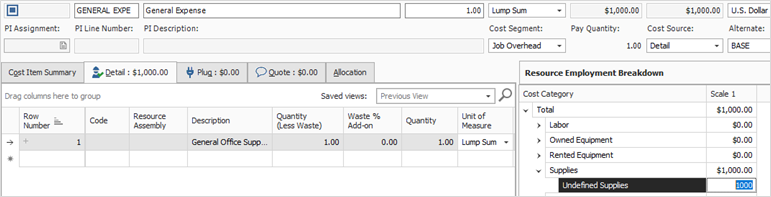
For this example, we’ll add General Office Supplies, 1 Lump Sum, $1,000 in the Supplies category.
Dependent indirect cost items
The other default indirect cost items are dependent indirect cost items, meaning their costs depend on other costs, prices or hours. They include:
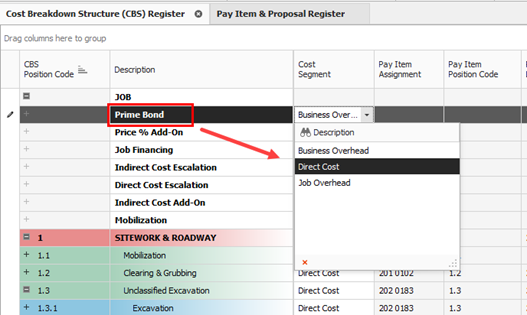
It’s possible to assign any assigned or dependent cost Item to any of the 3 cost segments which provides greater control over where costs exist in the Price Breakdown Structure (PBS).
Default dependent cost item deletion
If you need to use additional dependent cost items, you can create your own, but you must delete all the existing default dependent cost items first.
The following steps walk you through deleting your existing default indirect costs so you can create your own.
Delete existing default dependent cost items
-
From the Estimate tab, select Cost Breakdown Structure (CBS).
-
Select an Indirect Cost Item by clicking on its row header.
-
Press and hold the Ctrl or Shift key to select multiple indirect cost items.
-
Right-click on the selection, and then select Delete.
-
Select Yes to confirm you want to delete the selected cost items.
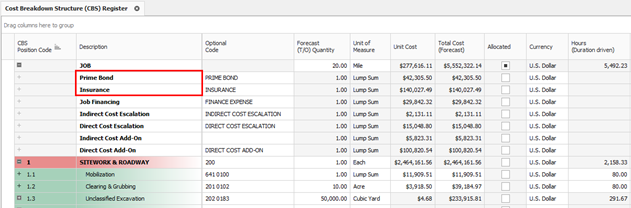
Prime Bond
The following steps walk you through adding and defining your prime bond for the job.
Define prime bond
-
From the Estimate tab, select Cost Breakdown Structure (CBS).
-
Right-click on the row header for any cost item and select Insert Dependent cost Item.
-
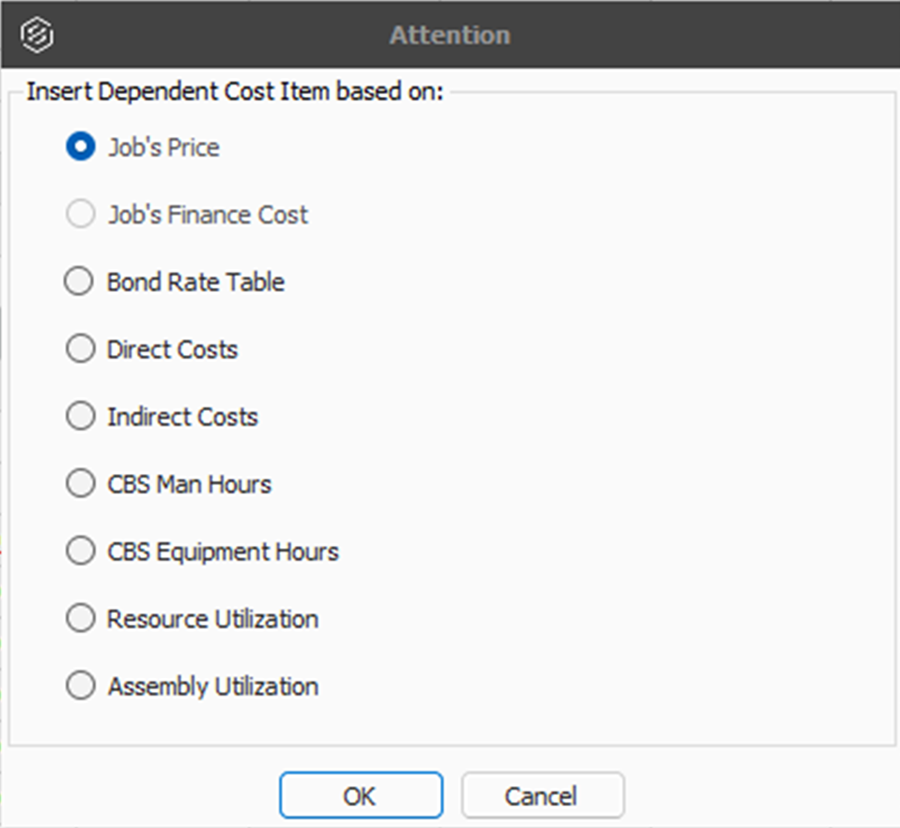
On the resulting Attention prompt, select based on Bond Rate Table.
-
Click OK.
-
Right-click the Prime Bond row header, and then select Open.
-
Use the Table Name drop-down to choose a table (e.g., Example: General Construction).
-
Click OK to close the record.
Multiple bond rate dependent items
For certain projects, you may want to calculate costs for bond or insurance premiums based upon multiple different rate tables. You can add multiple bond/rate table based dependent items in the CBS.
For example, in addition to having a prime bond, the job may also require insurance coverage where the premium is calculated using a rate table-based approach. This can be accomplished by adding another Bond/Rate table-based dependent cost item to the job.
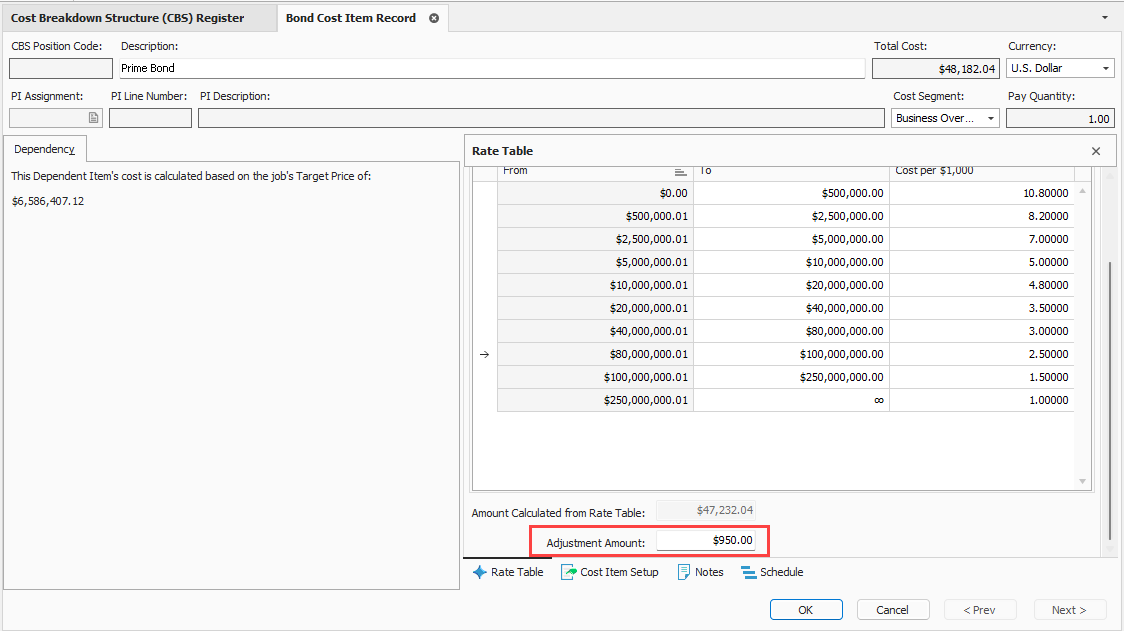
Additionally, bond premiums can be adjusted by a single amount. This is common when certain requirements are imposed by the contract, such as extended warranty periods. It is common for the bond premium to be established using a standard rate table, you can then add additional charges to the total bond premium amount.
Deleting bond tables
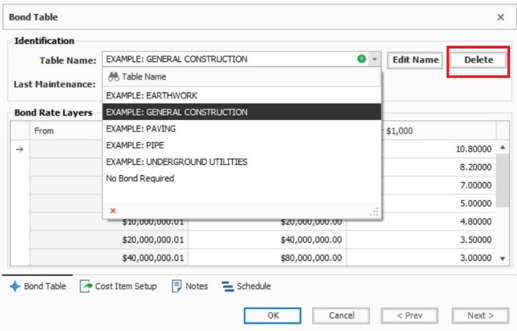
Delete bond tables that are not applicable to your estimate by selecting them and then clicking the Delete button. You can customize the Bond Table window to only view the tables that are relevant to your estimate from the Table Name drop-down list.
Define a price % add-on
-
From the Cost Breakdown Structure (CBS) Register, right-click the row header for any cost item, and then select Insert Dependent Cost Item.
-
On the Attention dialog box, select Job's Price.
-
Click OK.
-
Double-click on the Price % Add On row header to open the record.
-
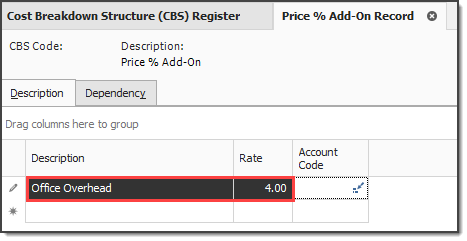
The Price % Add-on Record opens to the Description tab. Enter a description and a numeric value for rate.
For this example, we’ll enter a description of Office Overhead and a rate of 4%.
-
Click OK to close the record.
Create a direct cost add-on
-
From the Cost Breakdown Structure (CBS) Register, right-click on the row header for any cost item, and then select Insert Dependent Cost Item.
-
On the Attention dialog box, select Direct Costs.
-
Click OK.
-
Double-click the Direct Cost Add-On row header.
-
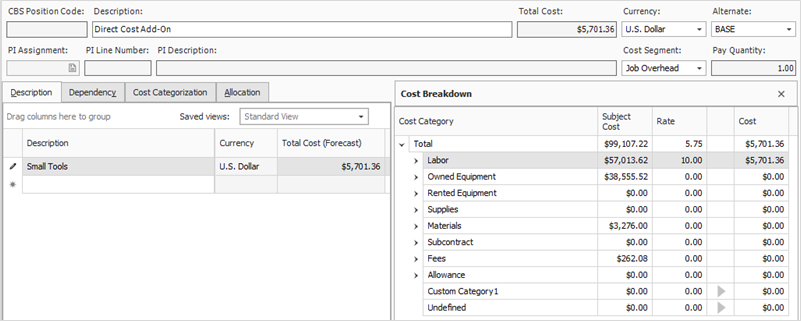
On the Description tab, type a description in the Description column.
-
Press the tab key on your keyboard. You can then define additional rows for other add-on costs as needed.
-
Click the Dependency tab to see what contributes to your subject cost.
-
For this activity, leave the default (lower) button selected.
-
On the Cost Breakdown tab on the right, add an add-on rate (percentage) or cost at any of the cost category levels you need. This updates the Total Cost (Forecast) of your item on the Description tab
-
Click OK to close the record.
For this example, we’ll create a new Direct Cost Add-On, giving it a description of Small Tools with a rate of 10% on the Labor cost category
Repositioning dependent cost items
Repositioning dependent cost items creates a simpler way to manage the hierarchy of your project by placing items of more importance ahead of other line items.
When you move a dependent cost item from its default location to a new position in the CBS, it’s assigned a CBS position code based on its new location. The cost item fields listed below are exposed in the CBS register so you can easily see the various percentages used in dependent items.
-
Subject Cost
-
Subject Cost Rate
-
Subject Billing Amount
-
Subject Billing Rate
These columns can also be found in the Bid Review view in Saved views.