Change Document Details
Sometimes you might need to change document details, such as if the document was uploaded under the wrong discipline. When enhanced bulk upload is enabled for the project, you can update document details for multiple documents and take advantage of the flexibility offered by the enhanced bulk upload tools. For more information about enhanced bulk upload, see Uploading Documents in Bulk.
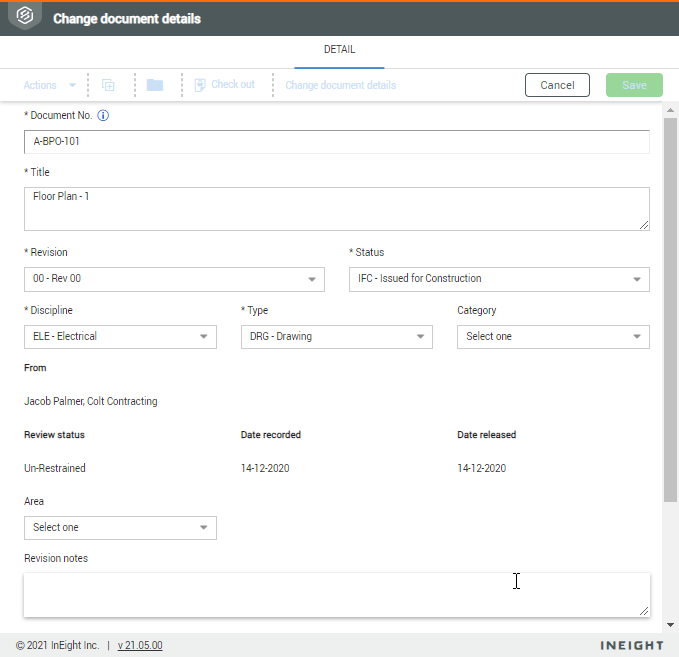
Change the document details for a single document
Summary: Change the document details for a single document.
Considerations: If you select multiple documents, and Enhanced bulk upload is enabled for the project, Document automatically opens the interface for using bulk upload. If Enhanced bulk upload is not enabled, all selected documents are updated with the same details.
-
Select the document in the Documents register, and then select Actions > Admin > Change document details.
-
Edit the details as needed.
You can change the document number to an existing document number as long as the revision and status combination is available. If versioning is enabled, the document number can have the same revision/status combination, and Document uses the uploaded date to order the versions.
- Click Save.
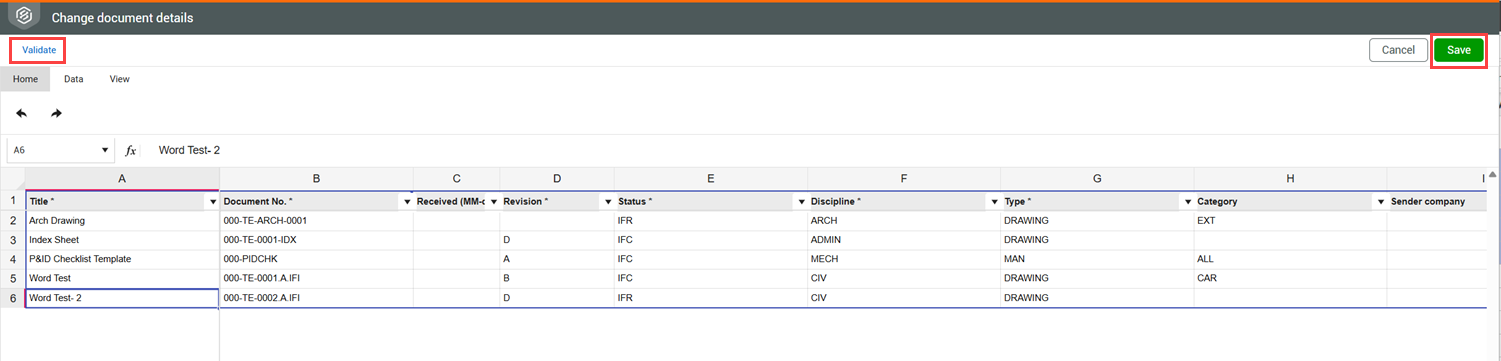
Change document details in bulk
Summary: Change document details in bulk when you want to change the document details of multiple documents in a single action. You can use enhanced bulk upload tools such as sorting and drag and drop to help you quickly update document details.
Considerations: Enhanced bulk upload must be enabled for the project.
-
From the Documents register, select the documents you want to update, and then select Actions > Admin > Change document details. The Change document details page opens.
-
Update the document details as needed.
- Click Validate to validate your entry. Correct any errors if needed.
- Click Save. The changes are saved.