Claim Quantities In InEight Plan & Progress
Use Case
-
The foreman executes the daily plan in the field. At the end of the day, he fills out a timesheet with his crew’s hours and records the quantities completed.
-
The superintendent receives the daily plan from the foreman and checks that the details are complete and accurate, then approves the daily plan.
-
OPTIONAL: The payroll administrator reviews approved employee hours, reason codes, and extra pay and sends it via automated integration or Excel export to payroll for processing.
-
At the end of the week, the project controls manager runs a sync to import the claimed daily plan quantities into the Cost Breakdown Structure.
Learn how InEight Plan and Progress work together to keep information from the field updated in InEight Control.
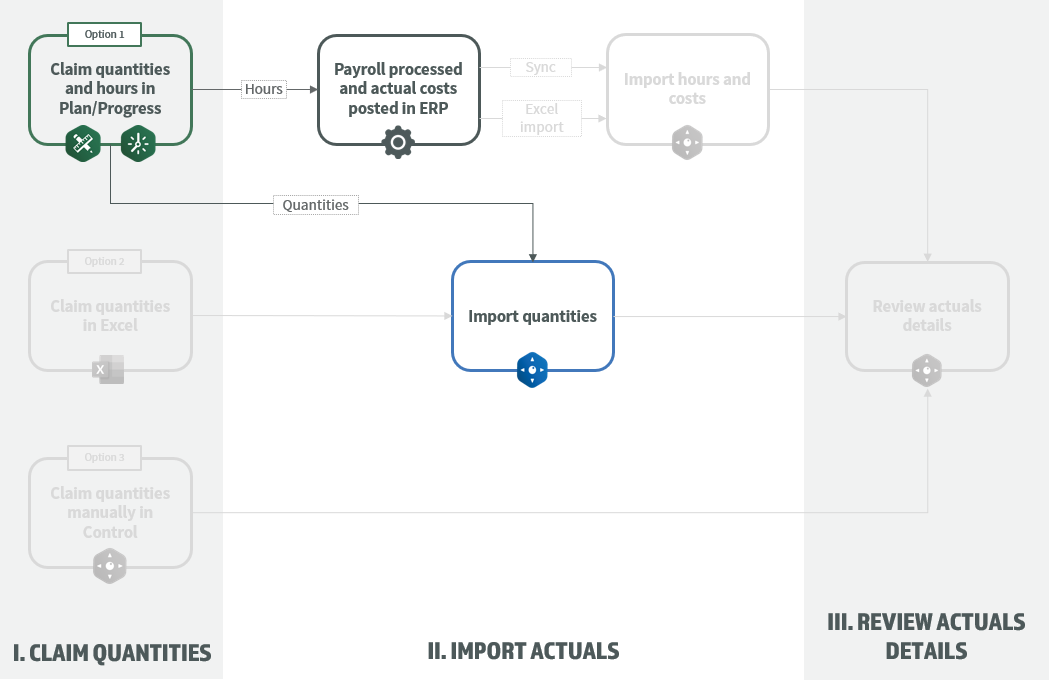
Claim Quantities
You can claim quantities at the component level in the Quantity Tracking module of InEight Plan or through daily plans in InEight Progress.
Note: To enable claiming in Plan and Progress, deselect
Hide in Plan, Progress, and Design for the cost item in InEight Control.
Option 1: Claim Quantities in Plan > Quantity Tracking
Step 1
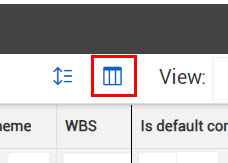
Select the View As icon to see your workspace in the Data Blocks view.
Step 2
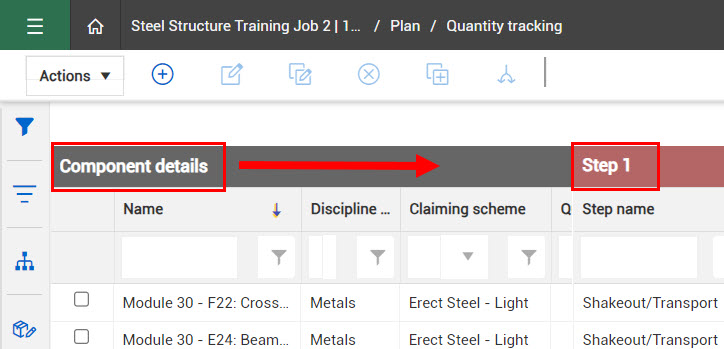
Navigate to the component and claiming scheme step you want to claim.
Step 3
To claim 100% of the step, select the checkbox in the Complete column.
Step 4
To claim a portion of the claiming scheme step, input the specific quantity in the This period qty field.
Step 5
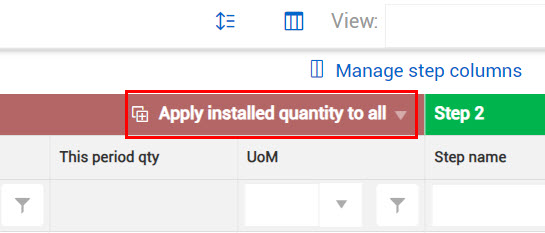
To claim quantities in bulk, use the Apply installed quantity to all button.
To learn more about claiming quantities in Plan, watch this video:
VIDEO | Data Block Claiming
Option 2: Claim Quantities in Progress > Daily Planning
Step 1
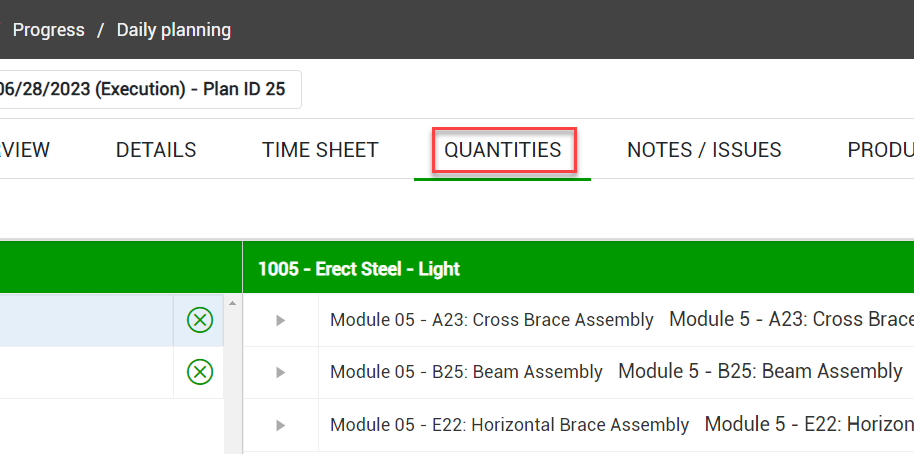
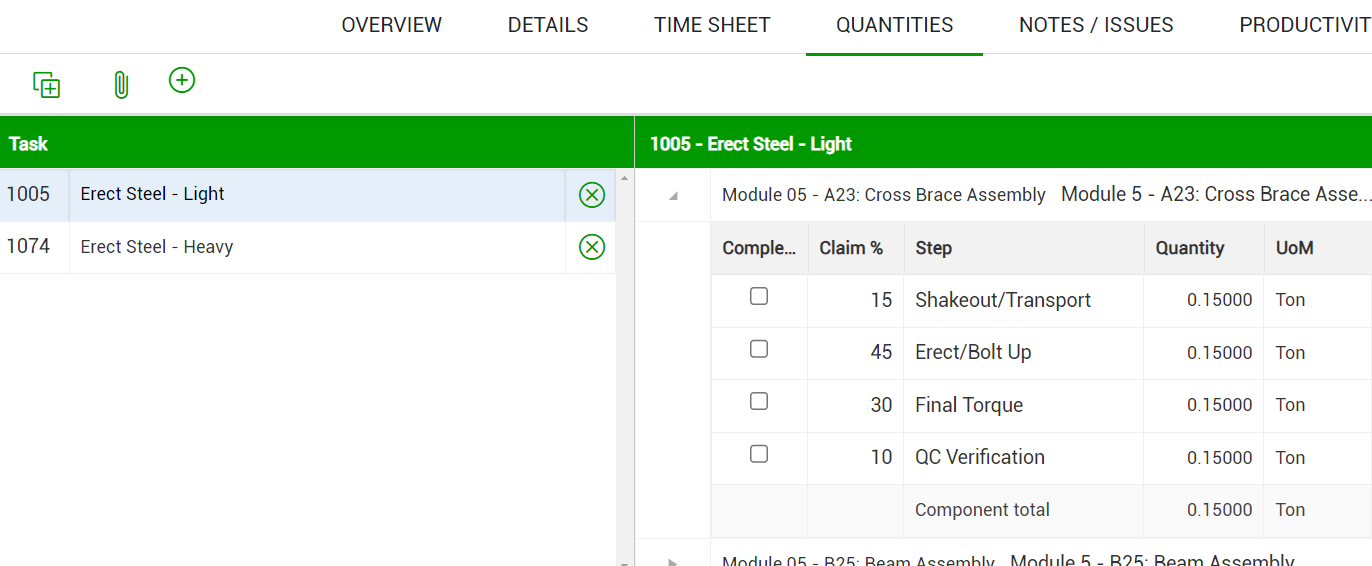
Open a daily plan and select the Quantities tab.
Step 2
Select the appropriate task, then expand the component to claim.
Step 3
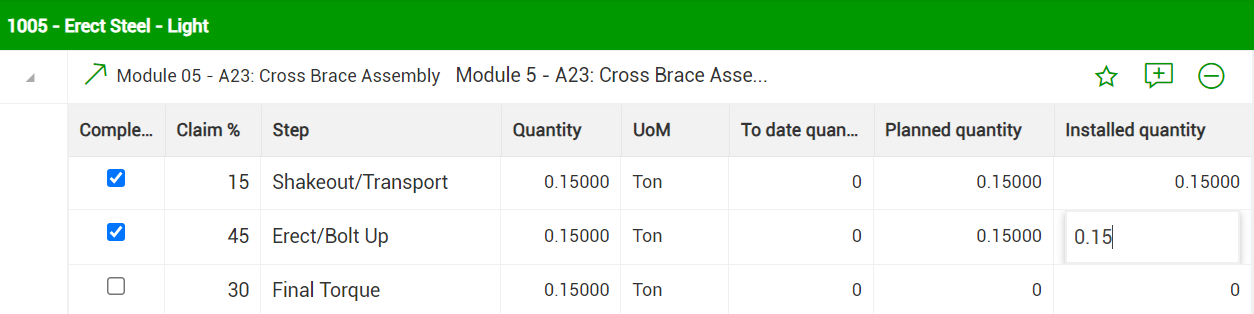
Claim progress of each step by either checking Complete or entering a quantity manually. Once the quantities for this daily plan are approved, the quantities and percent complete will update in Plan > Quantity Tracking and are ready to sync with InEight Control.
To learn more about claiming quantities in Progress, watch this video:
VIDEO | Input Actuals
Capture Hours
Hours worked can be captured in InEight Progress either through the Daily Planning module or through the Weekly Time Sheet module. Approved hours are sent to the ERP and can then be synced with InEight Control
Option 1: Record hours in Progress > Daily Planning
Create a daily plan to track all of a crew’s activities in one place. Track hours on the Time Sheet tab of the daily plan, then submit the crew’s hours, along with claimed quantities, as part of the daily plan.
-
Open a daily plan and select the Time Sheet tab.
-
Confirm the correct employees and tasks are loaded onto the time sheet. Click Add tasks and resources to make additions.
-
Under the appropriate task, add the hours worked for each employee.
-
When finished, ensure that all employees are signed out, and click Submit. Then plan now has a status of “Awaiting Approval.”
-
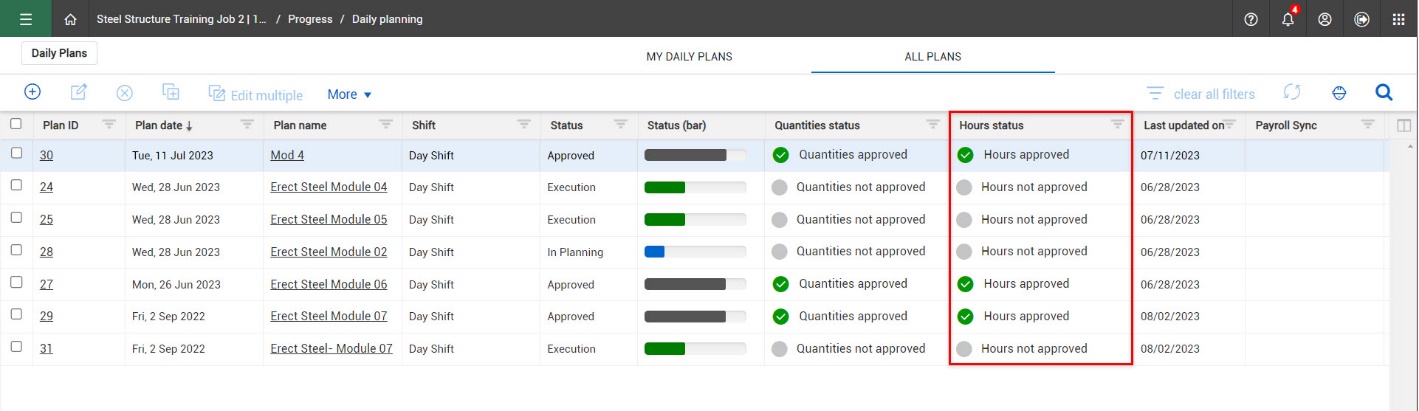
Once the hours have been approved by the assigned supervisor, they are sent to the ERP system.
Access the following links to learn more:
Option 2: Record hours in Progress > Weekly Time Sheet
Weekly Time Sheet is a convenient option for workers who are utilized across projects. These team members can report their time through personal entries, or a supervisor can update entries for their team.
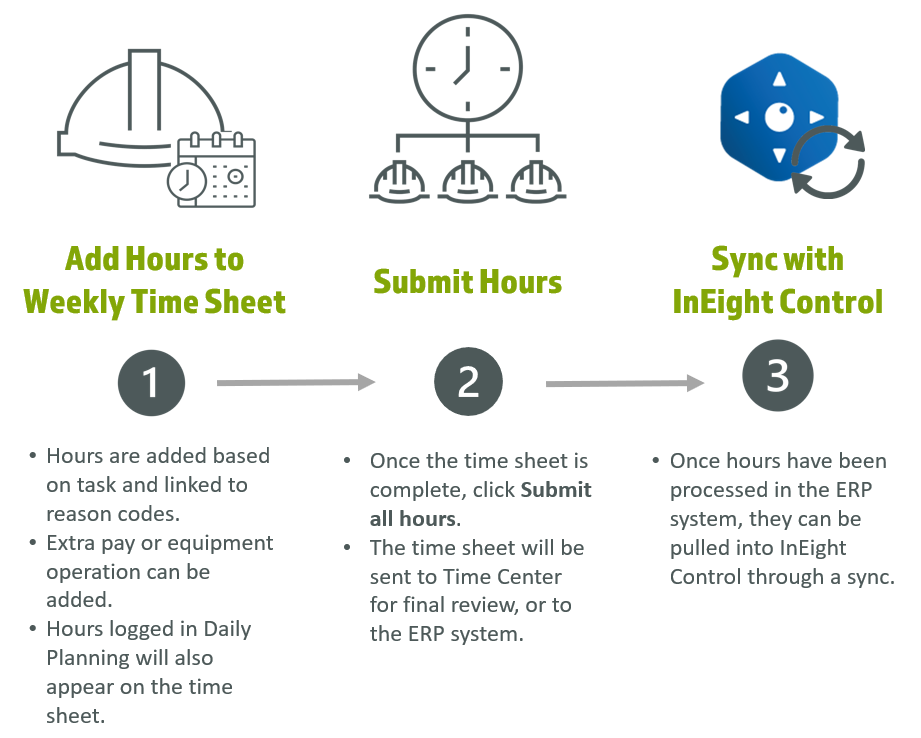
Access the following links to learn more:
Sync Quantities
In InEight Control, a sync allows you to update claimed quantities and compare them to project costs and man-hours.
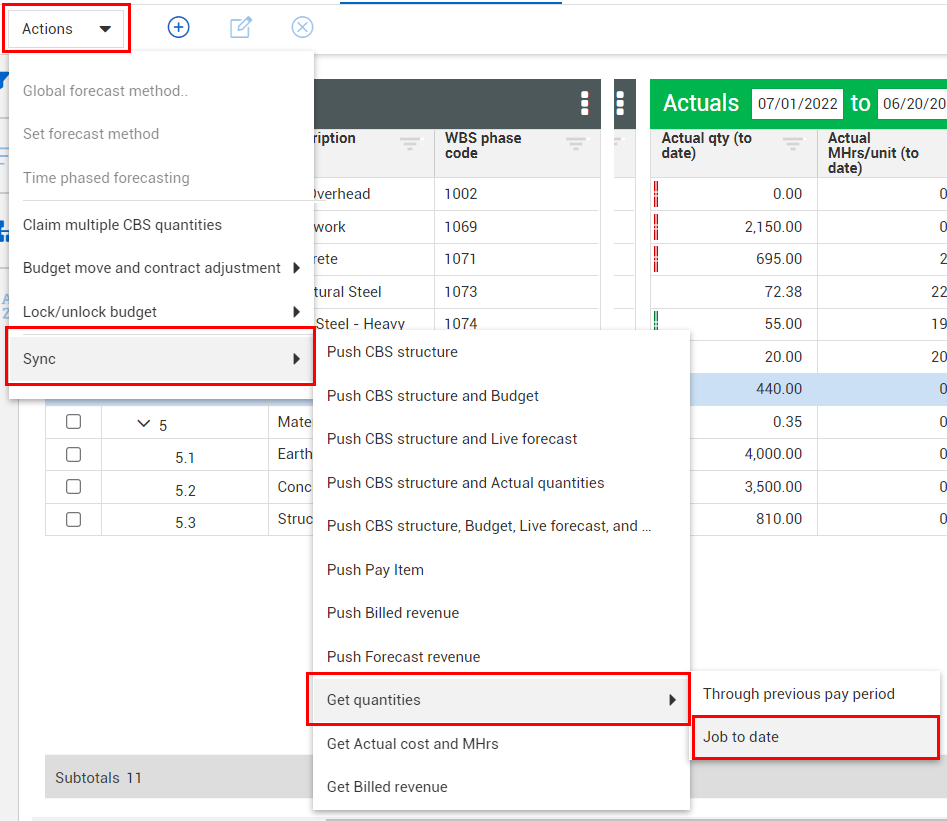
To perform a sync, select Actions > Sync > Get quantities > Job to date
Quantities claimed in Plan or Progress will update in the Actual Qty fields for corresponding WBS phase code items.
To learn more about synchronizing data across InEight applications, watch this video.
VIDEO | Sync Overview
Access the following links to learn more: