Forecast Resources tab
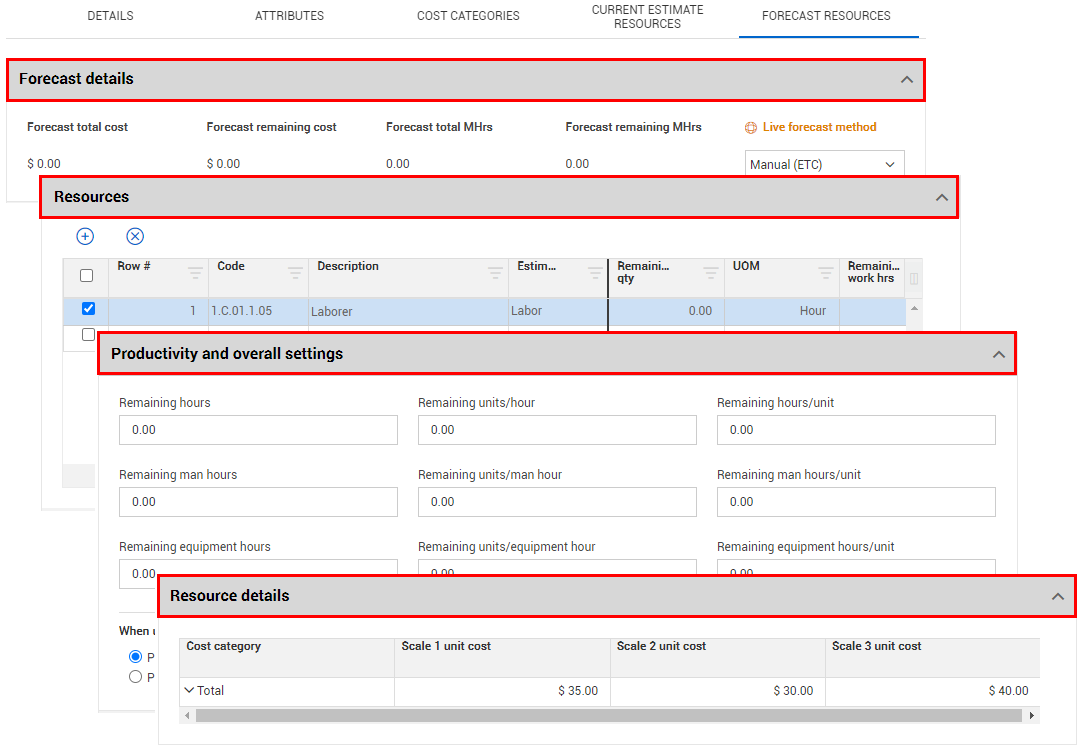
The Forecast Resources tab is where you can view and manage estimate resources assigned to a cost item.
From the Resources tab you can view and manage the:
-
Forecast details live forecast method
-
Add new resources and adjust duration-driven resources by changing their productivity
-
View and adjust resource rates of assigned resources
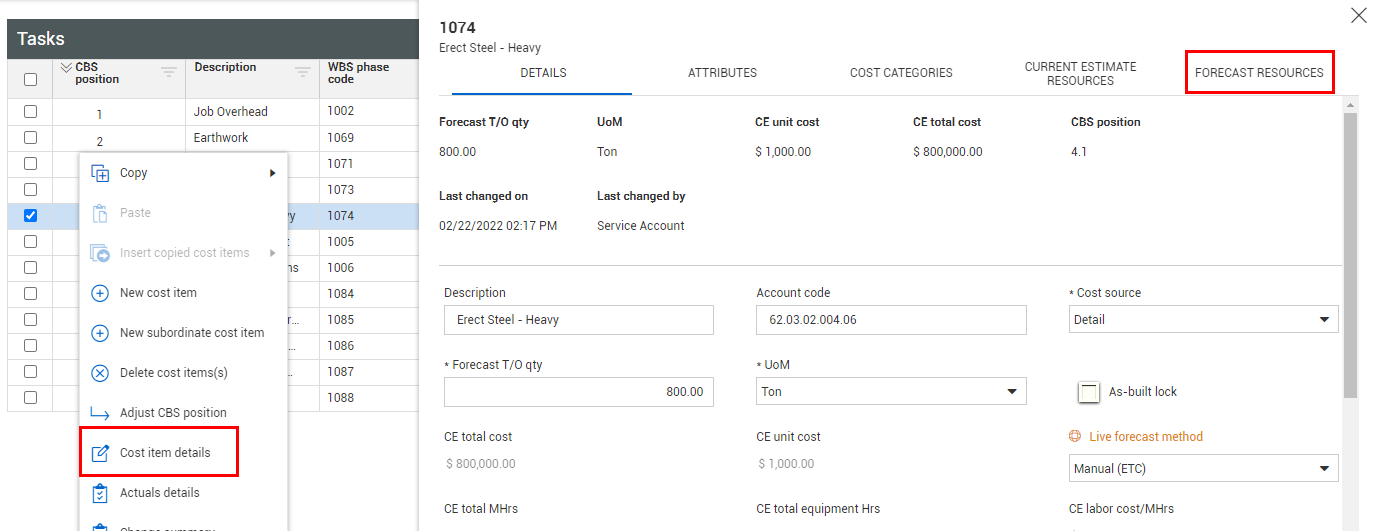
Like the Details, Attributes, and Cost Categories tabs, you access the Forecast Resources tab from the Cost Item Details slide out panel.
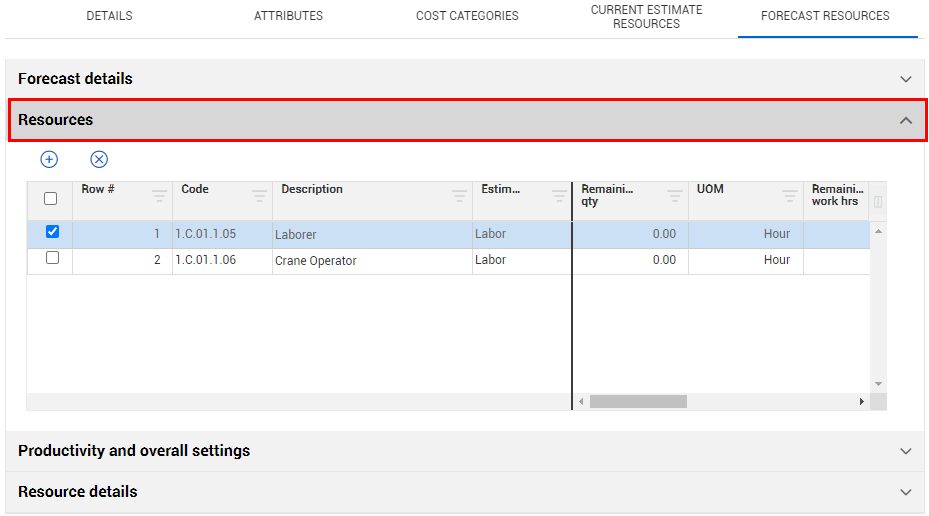
The Forecast Resources tab shows as an accordion menu where you can select a specific drop down menu you want to view.
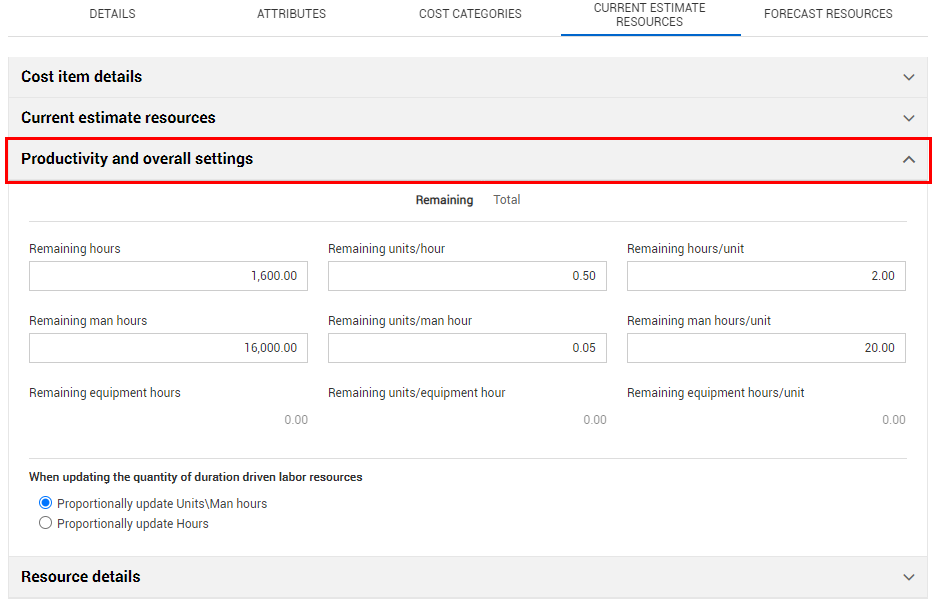
Productivity and overall settings
If the resource’s cost driver is set to CI Duration, you can change any of the values on the Productivity tab under Adjusting duration driven resources below, and it will change the work hours of your resources without you having to do the math yourself.
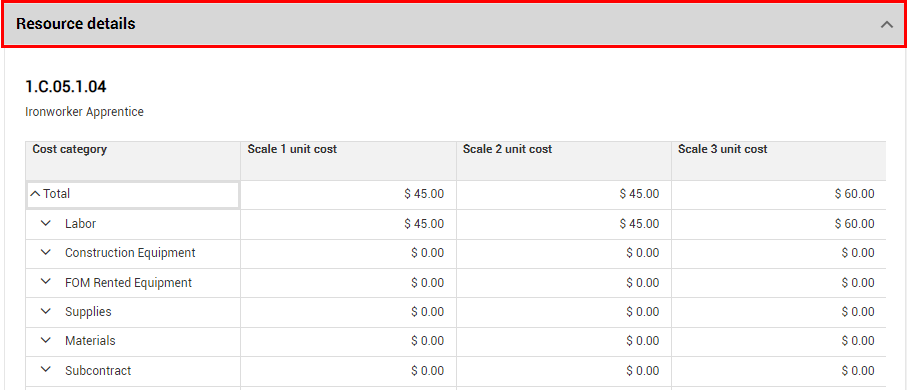
Resource Details
Resource Details shows the unit cost category breakdown of the selected resource listed above. The Resource rates tab expands to a unit breakdown on a selected item under resources. It is fully editable if you have the right permissions to do so.
 Orphan Indicator
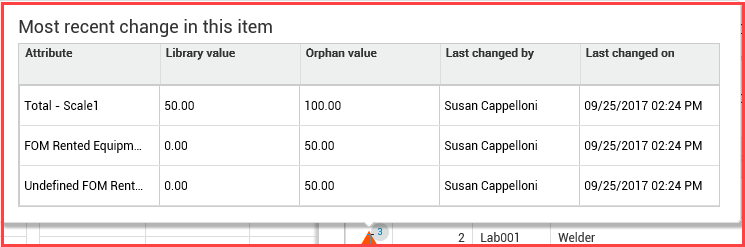
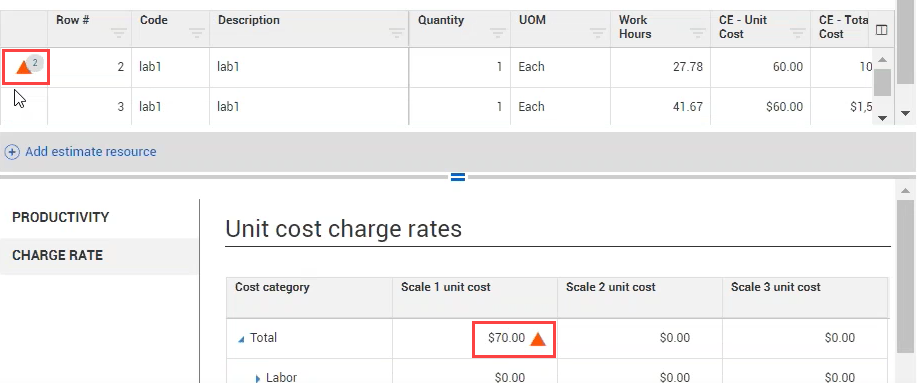
If you change the resource rate of one of the assigned resources, then a triangle will appear. The triangle is an orphan indicator. This means a value associated with this resource does not match the resource’s value in the Estimated resources in the Project library. When you hover over the triangle, it will give you a summary of all the differences between the library value and the orphaned value.
This is shown in case you want to change the values back to match the library. If you change the values back to match the library, the triangle will disappear.
Cost Item Man-Hours
Aside from on the Cost Estimate Resources tab, you can also define productivity on the CBS register page. The following steps walk you through how to add the planned man-hours for a cost item from the CBS register page.
Define Cost Item Man-Hours
-
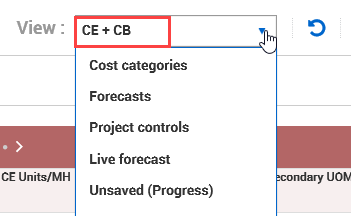
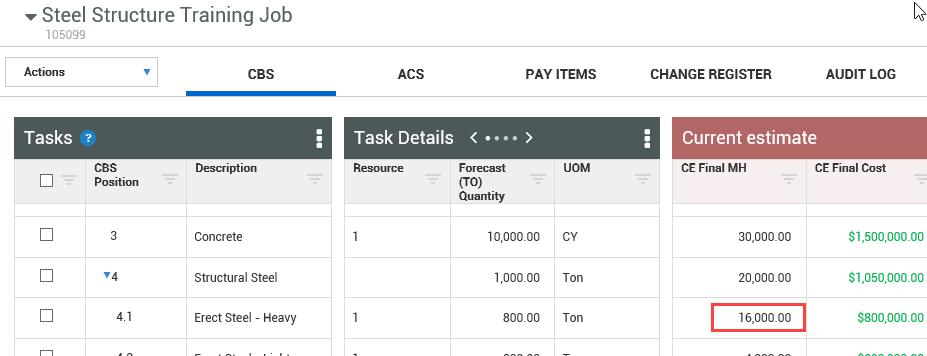
On your CBS register tab, make sure the Current estimate data block is displayed on the page, by selecting the CE + CB viewset.
-
Under the CE Total MHrs column, enter 16,000 for a cost item, then press the Tab key. Note – If the cost item is a “detail” cost source you will not be able to manually adjust this field.