System Settings
From the Backstage view, you can access system settings. System settings contain options and settings that affect the entire InEight Estimate system. All the settings under the Options menu are user-level settings.
General
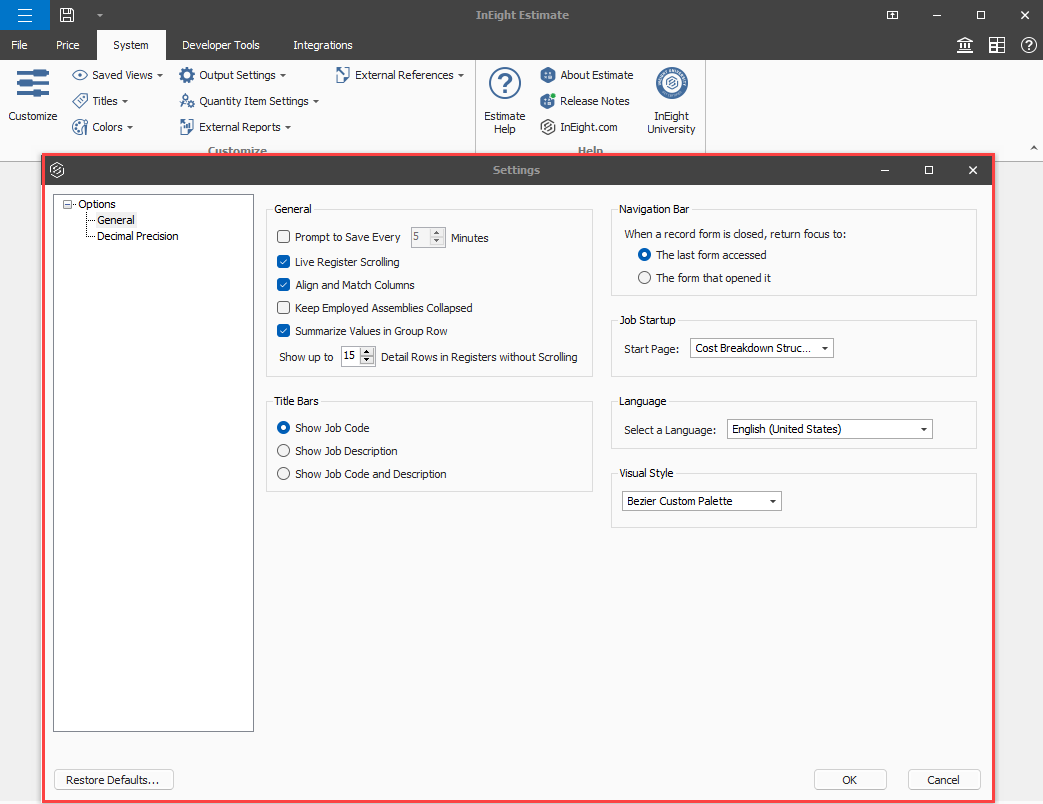
The following image and table show an overview of the General settings:
| Section |
Setting |
Description |
| General |
Prompt to Save Every <> Minutes |
Allows you to select the check box to activate the setting, and then select how often you want to get reminded to save your job (in minutes). |
| |
Live Register Scrolling |
Select to smoothly render text and numbers in real-time as you scroll. |
| |
Align and Match Columns |
Select to standardize columns across the registers. |
| |
Keep Employed Assemblies Collapsed |
Select to always hide nested items for employed assemblies and not expand when form is selected. |
| |
Summarize Value in Group Row |
Select to automatically show a total or average value for group rows. |
| |
Show up to <> Detail Rows in Registers without Scrolling |
Select the number of rows you want to have in your register view without having to scroll to view more. |
| Title Bars |
|
Select which of the three options you want to view in the job title bar when you open a job. |
| Navigation Bar |
When a record form is closed, return focus to:
-
The last form accessed
-
The form that opened it
|
When a record that you opened from a form is closed, you can choose if you want to return to the form that opened the record you closed, or the form you last opened. |
| Job Startup |
Start Page |
Select if you want to automatically open a job register when you open a job. You can choose from the following option:
-
Cost Breakdown Structure (CBS) Register
-
Pay Item & Proposal Register
-
Quote RegisterQuote Comparison & Award – Cost items
-
Quote Comparison & Award – Resources
-
Price Breakdown Structure
-
None
|
| Language |
Select a Language |
You can choose which language shows in the Estimate UI. You can select from:
-
English (United States)
-
Spanish
-
French
-
Norwegian Bokmål
-
Dutch
-
Portuguese (Brazil)
If you have a customized ribbon, changing to another language sets the ribbon to default, and your ribbon customizations are lost.
|
| Visual Style |
Visual style options |
Select from multiple visual UI style options, such as Bezier Custom Palette, Office 2019 Colorful, and WXI OfficeBlack. |
Decimal Precision
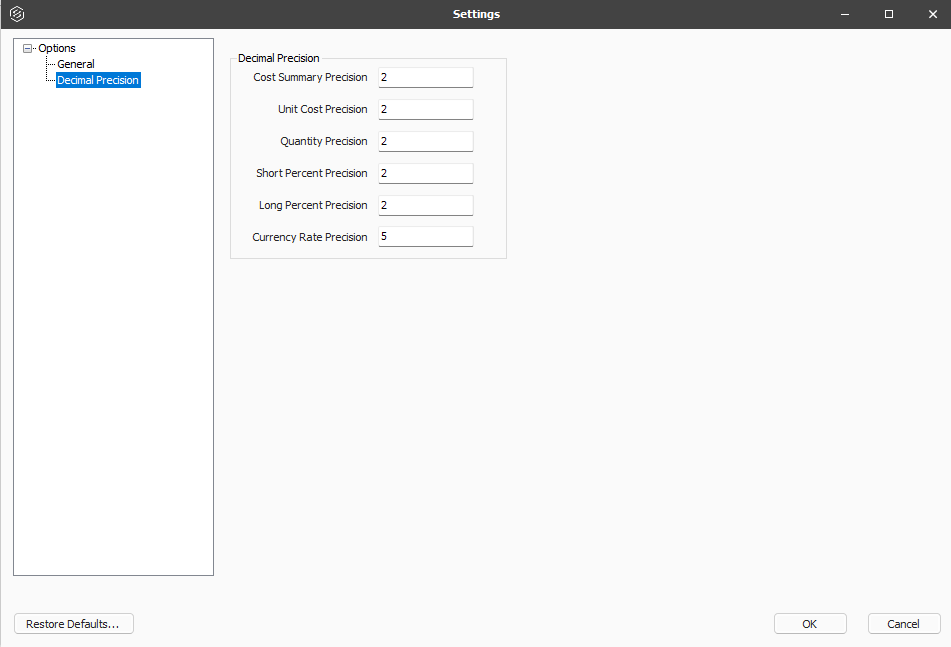
You can select the decimal precision for numerical values that are shown in Estimate.
For example, you may want your costs to display to the hundredth decimal place (2), and your quantities to display as whole numbers with no value to the right of the decimal (0). Calculations are not affected when changing the decimal precision.
You can select decimal precision for the following fields:
| Field |
Default value |
| Cost Summary Precision |
2 |
| Unit Cost Precision |
2 |
| Quantity Precision |
2 |
| Short Percent Precision |
2 |
| Long Percent Precision |
2 |
| Currency Rate Precision |
5 |
Configure general settings
-
Click File, and then select Settings to go to the Backstage view.
-
On the left menu, under Options, select General.
-
To activate Prompt to Save, select the Prompt to Save check box, and then select how often you want to be prompted (in minutes).
-
Select Decimal Precision on the left menu.
-
Review the default settings and update if needed.
Units of Measure will default to English, and Currency will default to U.S. Dollar.