Resource rate record
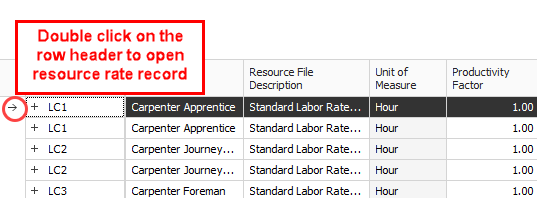
If you need to add cost to a resource, adjust a rate, or just view a more detailed breakdown, you can open the resource’s rate record. From the Library Resource Rate Register, double click the row header for the resource you need to view in greater detail.
|
Name
|
Description
|
|
1
|
Record
|
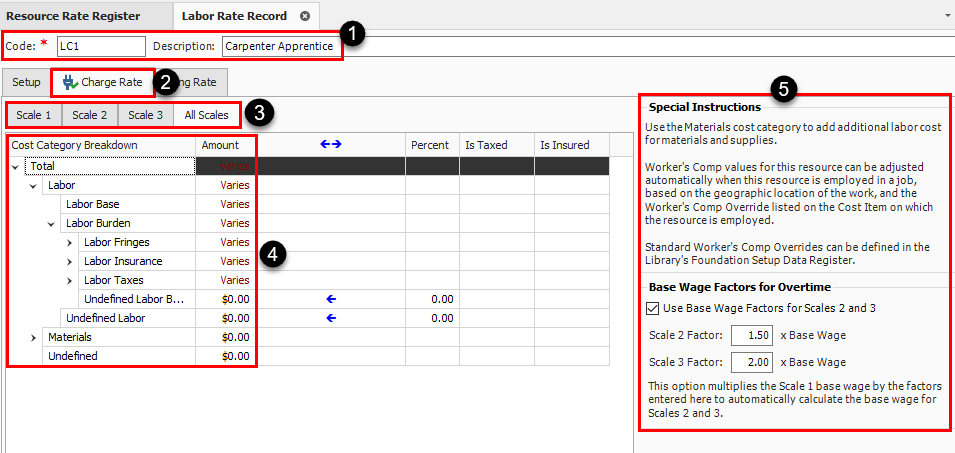
The record references the resource you are editing.
|
|
2
|
Charge Rate
|
The Charge Rate tab is the tab the record defaults to and is where you define the cost of the resource.
|
|
3
|
Scale Buttons
|
The Scale buttons only show up on labor resources. They are used for defining regular time, overtime and double time rates for the resource.
|
|
4
|
Cost Category Breakdown
|
The Cost Category Breakdown is where you enter the costs for the resource. The categories will depend on what type of resource it is (e.g., equipment resources will have equipment cost categories and materials will have material cost categories).
|
|
5
|
Special Instructions / Base Wage Factors
|
The right side of the record will have additional options to help you define the rate. These options change depending on what type of resource it is.
|
|
Name
|
Description
|
|
6
|
Setup
|
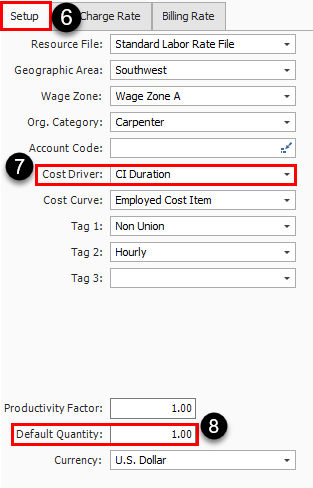
You can define the resource’s attributes, plus other settings. These attributes are used for filtering which resource rates to load into a new estimate.
|
|
7
|
Cost Driver
|
Labor resources default Cost Driver is CI Duration which means their costs are driven by time.
|
|
8
|
Default Quantity
|
The Default Quantity is typically set to 1 for most cases if you are bringing in the resource you are using at least one.
|
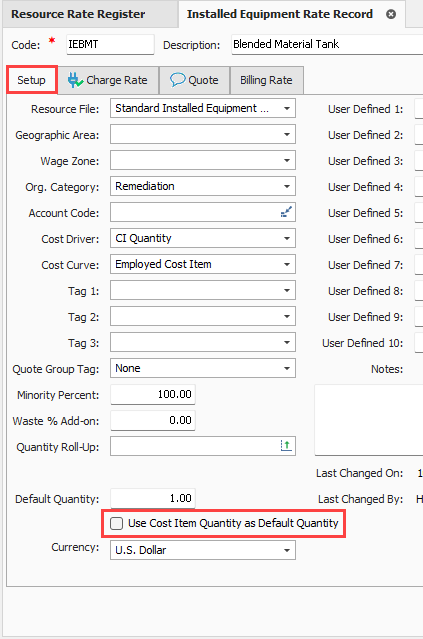
Use cost item's quantities
In the Setup tab, you can select to use the cost item's quantity as the default quantity for the following resources:
-
Installed material
-
Installed equipment
-
Supplies
-
Unique
For more information, see Use cost item quantity option.