Document 25.9 Release Notes

General release is available starting 25-SEP-2025.

Web Release Notes

Documents

  • Nominate a review status in bulk from Review register – You can now nominate a review status in bulk when reviewing documents. Previously, you had to apply each status individually while on the review register. ClosedRead more

    When you want to nominate a status for multiple documents, you can now select them from the Document > Review page, and then click Actions > Apply review status. The Apply review status dialog box opens, and then you can select the status. You can apply the status to the selected documents only or to all documents in the view. For more information, see PDF viewer toolbars.

  • Review and Release registers new column – The Review coordinator column has been added to the Review and the Release registers.

  • Collapse tool chest categories – You can now collapse categories in the tool chest to make it easier to navigate through a large collection of mark up tools. For more information about the tool chest, see PDF viewer toolbars.

Administration

  • Central Administration new functions – You can now use Central administration to add administrators to projects, create companies, and remove users from security groups. For more information, see Central user management.

  • Skip remove and replace step when forcing inactivation – When you force inactivation, you no longer must remove or replace users in roles, review teams, or forms. ClosedRead more

    A message notifies you that the inactive users were not removed or replaced and that this might affect project processes. You must remove the reviewers for the role, review team, or form to be valid. For more information, see Maintaining the Global Address Book.

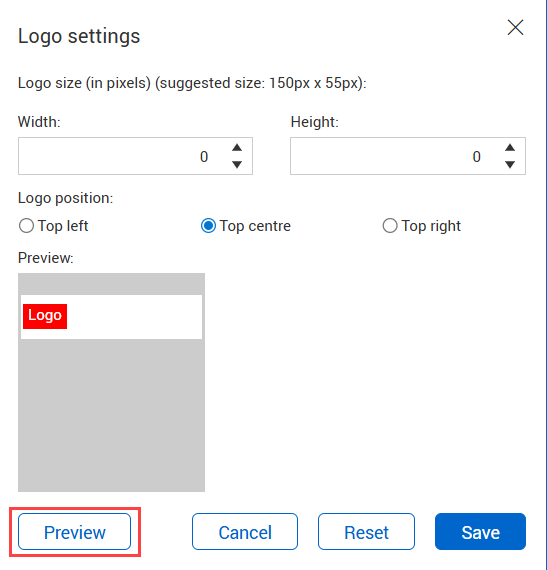
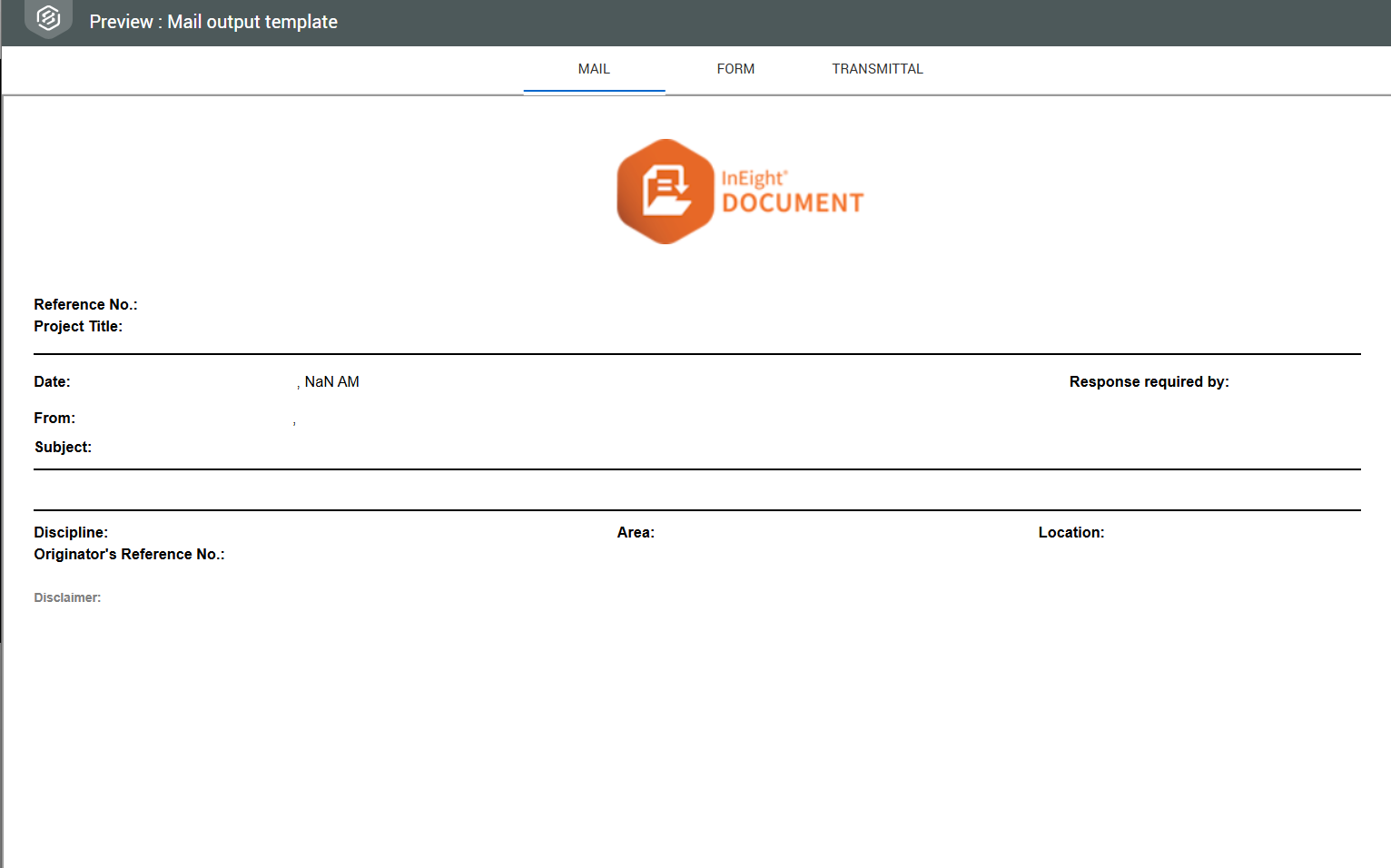
  • Preview company logo – You can now preview the company logo in real time to see how the logo will look on a form, mail item, or transmittal. ClosedRead more

    The Logo settings dialog box shows when you edit a logo on the company Details page and now includes a preview option.

    When you click the Preview button, Document opens the templates to show how the logo will look in production. The preview has tabs for mail, forms, and transmittals.

    For more information, see Creating Companies.

Mail

  • Mail history – The Mail module now includes a History tab, so you can see changes made to a mail item. The history includes when the mail item was sent, and for draft mail, when it was edited or deleted and status changes. For more information, see View mail history.

Transmittals

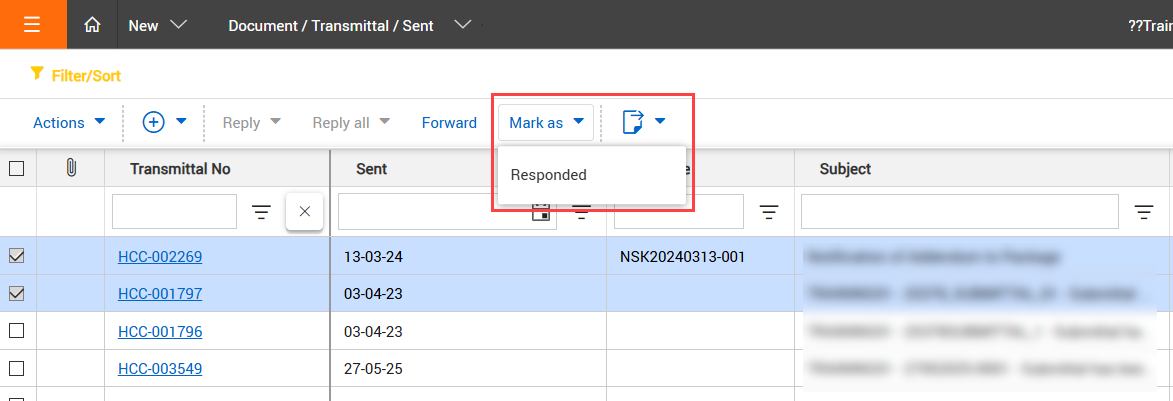
  • Mark transmittals as Responded in bulk – You can now specify that a response has been received for transmittals in bulk from the Transmittals Sent items page. The Mark as button has been added to the Sent items page, so you can select multiple transmittals, and then mark them as Responded and enter a responded date. ClosedRead more

    When you select Responded, the Mark as responded dialog box opens, where you can enter the responded date and choose whether to update the response received dates for the recipients where received dates are not updated.

    After you click Save, the items are marked as responded to, and the transmittals are removed from the statistics from the dashboard.

    Marking transmittals as Responded in bulk reduces the dashboard statistics for transmittals with a response outstanding.

    For more information, see Responding to and Forwarding Transmittals.

Forms

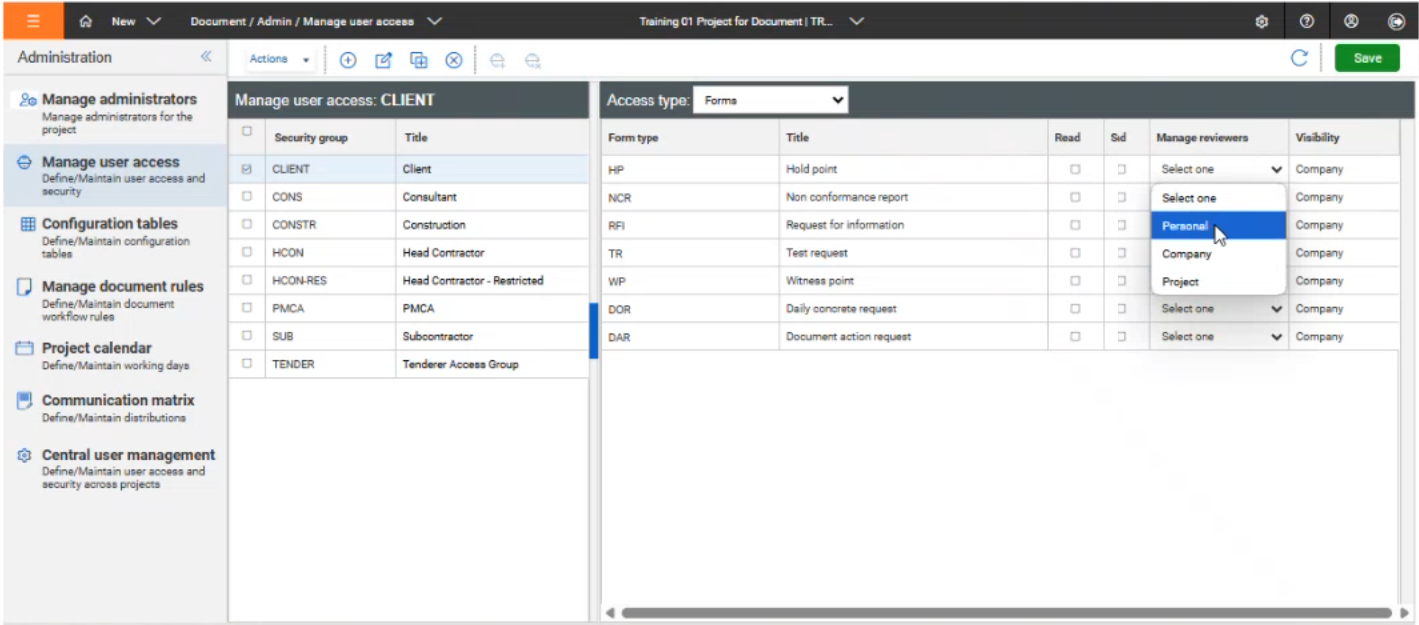
  • Manage reviewers on forms – The new forms group setting Manage reviewers (Admin > Manage user access > Forms) lets you give users the ability to manage reviewers of a form. Previously, only the form initiator could manage reviewers. ClosedRead more

    The Manage reviewers column has been added to the Forms security settings. For each form type, you can select whether the members of the security group can manage reviewers at the individual, company, or project level.

    For more information about security groups, see Configuring Security Group Access by Type. For more information about about managing reviewers, see Editing Forms Section Reviewers (workflow forms only).

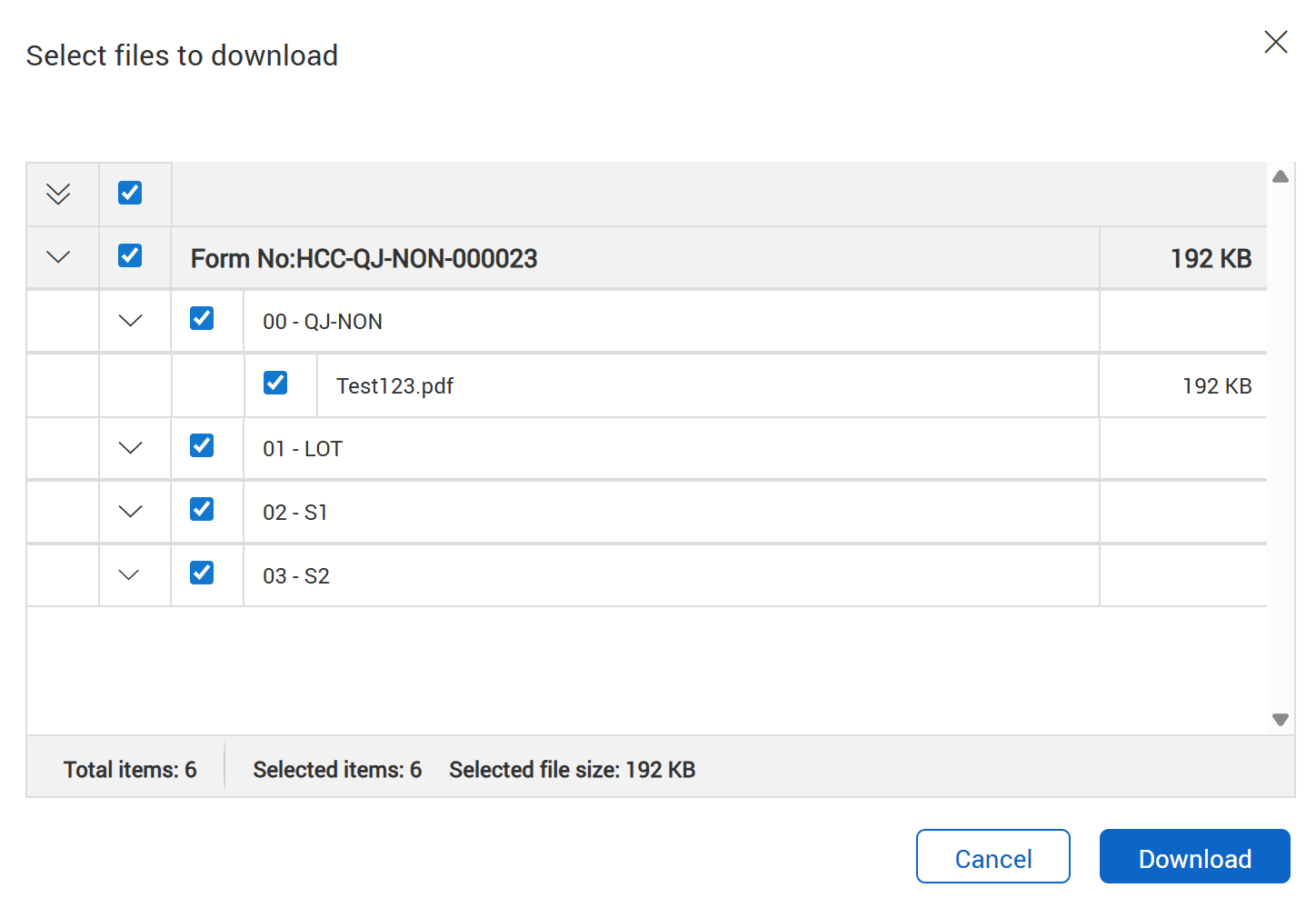
  • Download attachment option on Forms register – You can now click the Attachment icon in the Forms register to download form attachments. ClosedRead more

    The Select files to download dialog box opens. Select the files you want to download, and then click the Download button.

    For more information, see Forms register.

Lots

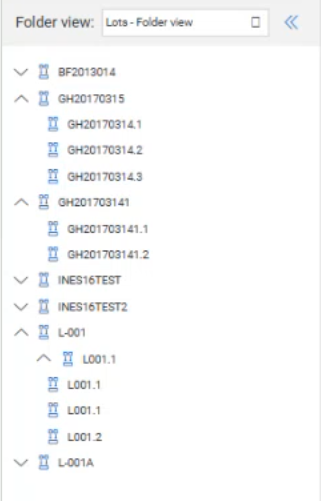
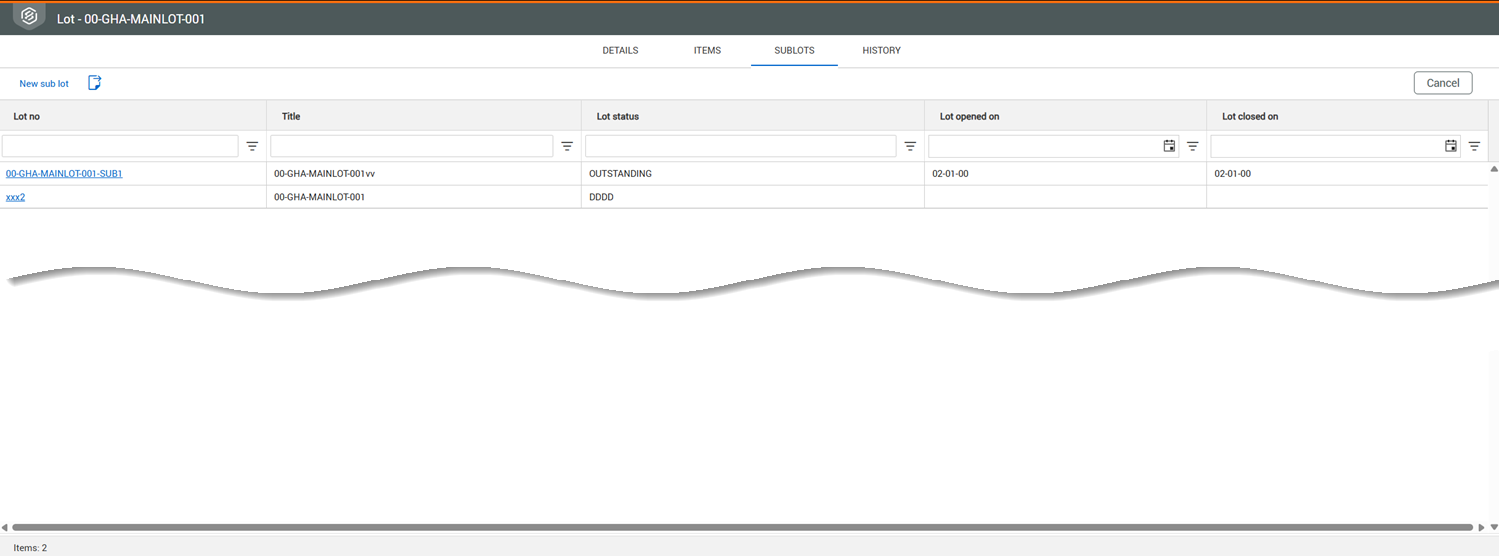
  • Identify sublots on Lots register and Details pages – The Lots module now has multiple ways to quickly identify lots and linked sublots. ClosedRead more

    The new Lots folder structure shows lots and can be expanded to show the relationship between a lot and its linked sublots.

    The Lot level column has been added to the Lots register to make it easier to see and quickly identify whether it is a lot or sublot.

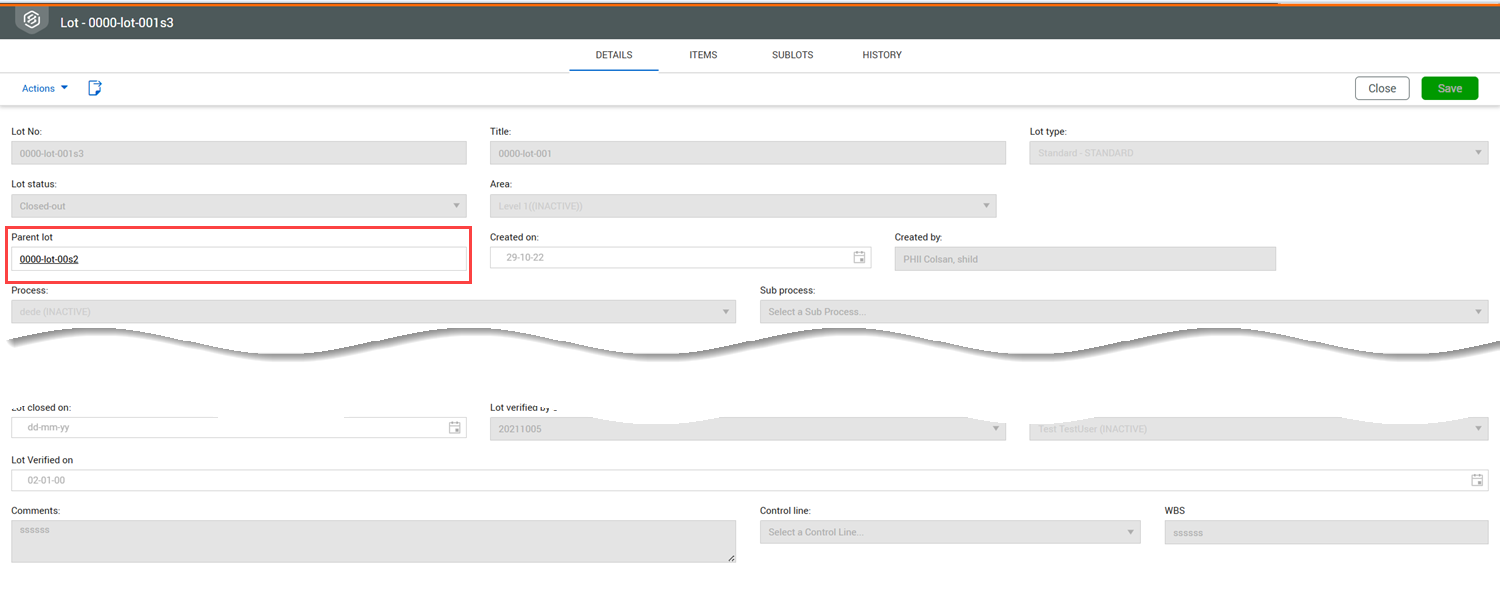
    The Parent lot field has been added to the Details page for sublots, so you can quickly identify the parent lot.

    The Sublots tab, which lists all linked sublots, has been added for parent lots.

    For more information, see View Lots and Sublots .

  • Link Gallery items – You can now link items in the Gallery to a lot.

  • Process and Sub process dependencies in Lots configuration – In the Process and Sub Process Configuration tables, you can now construct dependencies from subprocess to process instead of process to subprocess for better consistency with other dependencies in InEight Document. Dependencies created prior to release 25.9 are still valid. Starting with release 25.9 you must build the dependencies from subprocess to process.

Submittals

  • Complete review from Deliverables/Documents and Comments tabs – The Complete review button has been added to the Deliverables/Documents and Comments tabs, so you can complete the review without having to go back to the Details tab. For more information about completing reviews, see Review deliverables. For more information about completing workflow reviews, see Submittal review workflow.

Reports

  • Warning when running a report without filters – When you try to run a report without filters, a warning message shows informing you that running the report could impact performance. You can then choose whether to proceed.

  • Report on failed sign in attempts – A new report shows failed sign in attempts made on a project. For more information, see Administration Reports .

InEight Document modules

  • Download disclaimer now shows when downloading – When a download disclaimer is defined (Project settings > Disclaimer > Download disclaimer), it now shows when you download a document. Previously, the disclaimer showed only when you signed in to Document. ClosedRead more

    You must acknowledge the disclaimer before being able to download documents from the system.

    If you do not want the download disclaimer to show when downloading, select the Do not display this message check box in the disclaimer. You are still required to acknowledge the disclaimer if it is changed by the administrator.

  • In list operator for filters – You can now use an in list operator, that is, a list of values separated by OR statements, to filter values in a register. For registers that have advanced filtering, you can select the operator In list and then enter or copy and paste the values.

  • Select multiple values to filter columns – You can now select multiple values to filter column headers in registers when searching.

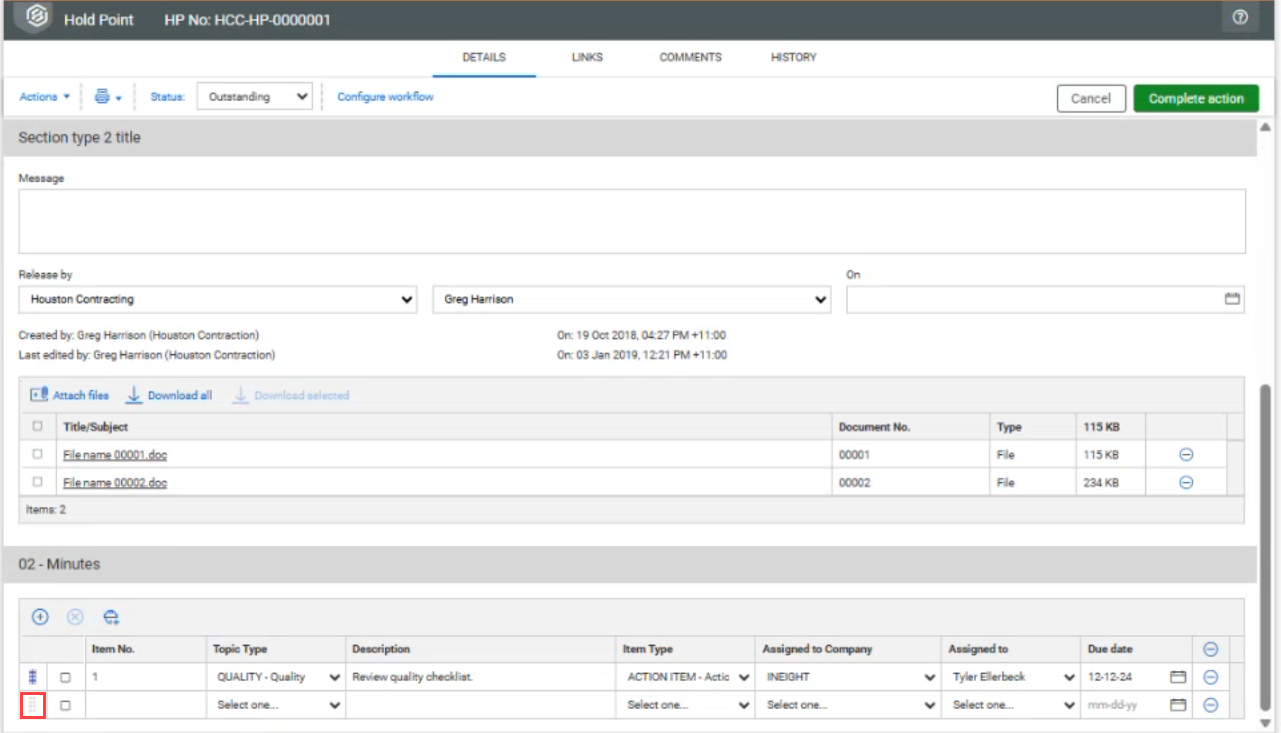
  • Rearrange rows in dynamic tables – You can now change the row order in a dynamic table. ClosedRead more

    Previously, when you added a row to a dynamic table, its position was fixed. You can now click the Move icon for a row and then drag and drop it to its new position.

Mobile Release Notes

Lots

Document_Enhanced_UI_Release_Notes_25.9